

Appearance
Access & Roles
EEforce shows you only the projects you're allowed to see, and lets you do only what your role on each project permits. This keeps everyone's work safe and tidy — you'll never accidentally change a project you're only meant to look at.
What you can do depends on your role
Each project gives you one of three roles:
| Your role | What you can do |
|---|---|
| Viewer | Browse the project, preview and compare its designs, download files, and take part in the conversation: comments and replies are allowed while the server licence is active. Read-only otherwise. |
| Contributor | Everything a Viewer can, plus check designs out, edit them, check in new versions, and resolve or reopen comments. |
| Manager | Everything a Contributor can, plus manage the project itself — rename it, clone or delete it, and decide who else has access. |
If you have no role on a project, it simply doesn't appear in your list. That's normal — you're seeing exactly the projects meant for you.
If you're a Viewer, a Read-Only Project banner appears while the project is open — a reminder that editing is off the menu.
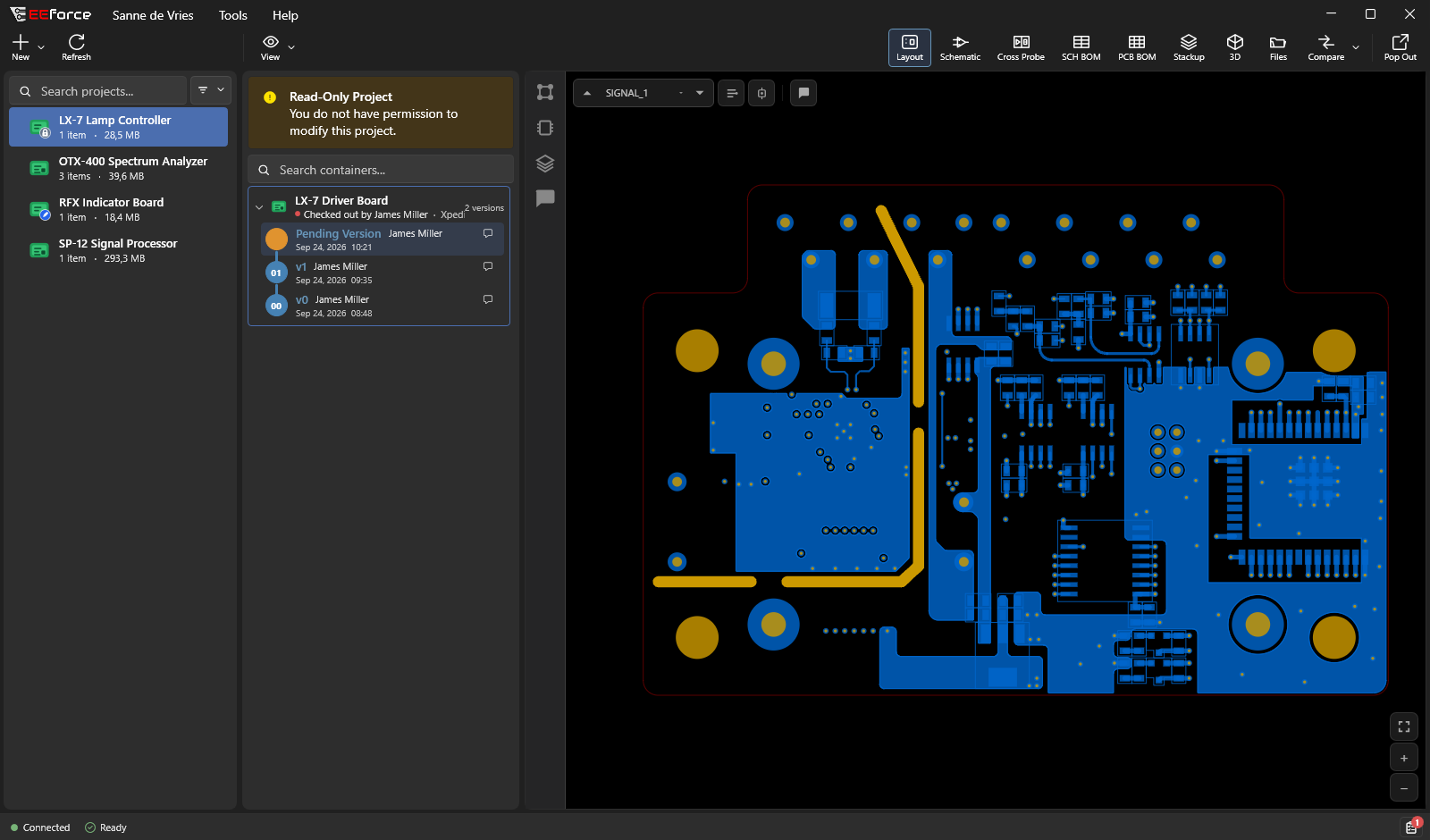
Project access and licence expiry
A Viewer’s Read-Only Project banner still allows comments. The server-wide Read-Only Mode — License Expired state prevents changes, including comments, for every role. See Licensing.
"Why can't I…?"
| You're trying to… | …but can't, because |
|---|---|
| See a project a colleague mentioned | You haven't been given access. Ask a Manager of that project (or an administrator) to add you. |
| Check out / edit a design | You're a Viewer on that project. Ask for Contributor access. |
| Resolve a comment | You're a Viewer. You can still comment and reply; resolving needs the Contributor role. |
| Rename or delete a project, or change access | That needs the Manager role. |
| Copy a design into a project | Adding a design to a project needs the Manager role on that project. Any role on the design's own project is enough to copy from it. |
| Move a design | Moving needs the Manager role on both projects, because the design leaves one of them. |
| Edit a design someone else is using | It's checked out to them. You can still view it; the version history shows who has it. |
How access is decided
You can be given a role directly, or through a group you belong to — for example the RF Team group. If both apply, you get the more capable role of the two. Groups let administrators grant access to a whole team at once.
For Managers and administrators
If you manage a project, you control its access list from Properties — add people or groups and set each one's role. You can do the same from a web browser with EEforce 365, without the desktop app: see Managing Access. Administrators can also change project access, users and groups in the web admin.
Changing roles on several projects at once
Tools → Project Permission Manager opens the Batch Project Updater: tick the projects you manage, build the access list you want with the same editor as Properties, review the confirmation and apply. The list you build replaces the current access list of every ticked project — so include the people and groups that should keep access, not only the new ones.
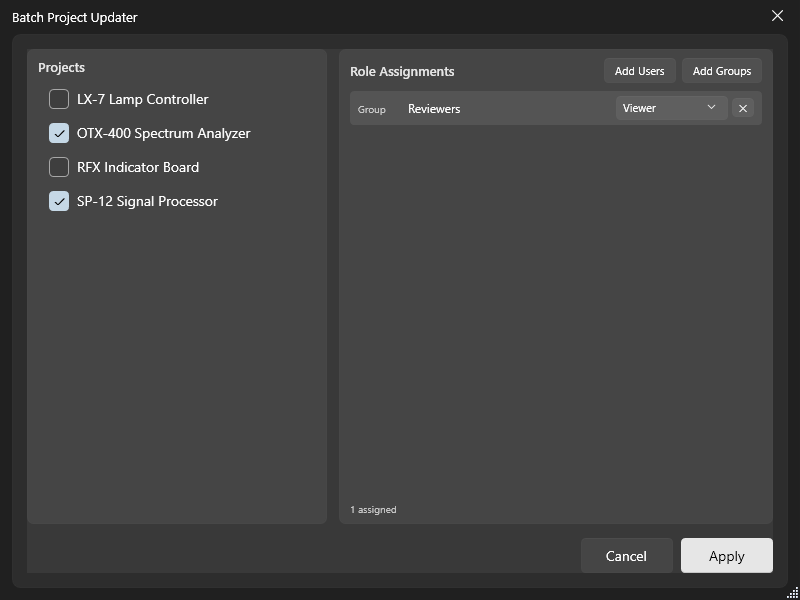
TIP
To let everyone in your company view a project, a Manager can add the built-in All Users group as a Viewer. Leave it off to keep the project private.