

Appearance
Signing In
Starting EEforce takes you through two steps:
- Sign in — with your EEforce username and password, or with your company account if your workplace uses single sign-on.
- Choose a licence — only the first time, so EEforce knows which seats you're using.
EEforce can remember both, so after the first time it's usually just your password.
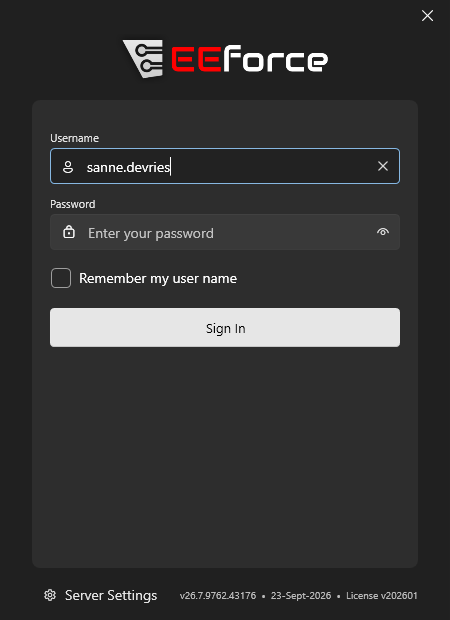
Signing in with a username and password
- Enter your Username and Password. The eye icon shows the password while you type.
- Tick Remember my user name so you don't have to type it next time.
- Click Sign In.
Your administrator gives you your username and password. If your company connects EEforce to Active Directory, they are usually your normal Windows username and password.
TIP
EEforce remembers only your username — never your password.
Signing in with your company account (SSO)
If your company uses single sign-on, the sign-in screen also shows Sign in with SSO.
- Click Sign in with SSO. Your company's sign-in page opens — either in a window inside EEforce or in your web browser, depending on how your administrator set it up.
- Sign in there as you normally do. EEforce waits until you're done; click Cancel to go back.
If Remember my user name is ticked when you sign in with SSO, EEforce signs you in with SSO automatically next time. To stop that, open the menu under your name and choose Remove Automatic Login.
The Sign in with SSO button appears only when your administrator has switched SSO on.
Choosing a licence
The first time you sign in, EEforce asks which licence to use. There is one card for each EEforce product your company has, such as EEforce for PADS Professional and EEforce for Xpedition. Each card shows the licence type, its expiry date and how many seats are free.
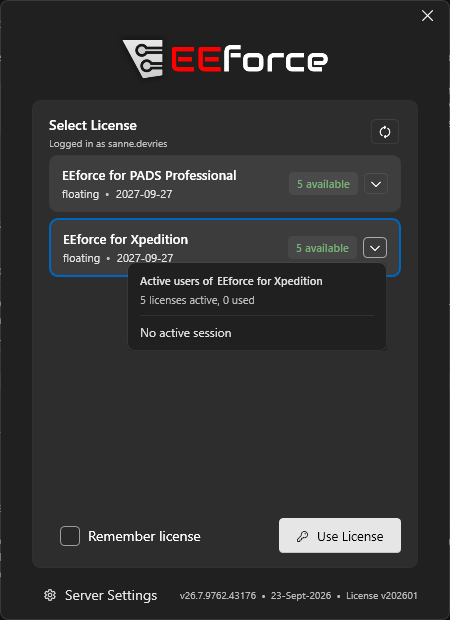
- Pick the licence your administrator told you to use — usually the one for the design tool you work with.
- Tick Remember license to skip this step next time, as long as that licence has a free seat.
- Click Use License.
When you close EEforce, your seat becomes free for someone else. While you're at this step:
- Who is using a licence? Click the arrow on a card to see the people holding seats, or the refresh button to update the numbers.
- No seats free? A card that says None available has every seat in use. Wait for a colleague to close EEforce, or ask your administrator.
- A different licence next time? Open the menu under your name and choose Forget License Choice; the step appears again at your next sign-in.
Reading needs no licence
Looking at designs in your web browser with EEforce 365 doesn't use a licence seat at all. See Reviewing in the Browser.
When the server licence has expired
If your company's EEforce server licence has run out, EEforce skips the licence step and opens in read-only mode. A Read-Only Mode — License Expired banner explains why. You can still browse projects, preview designs and download files, but you can't check designs out or in, or change anything else. Let your administrator know — as soon as the licence is renewed, everything works normally again.
Using a different server
Most of the time the server is already set — usually by the installer — and you never touch this. If you do need to point EEforce at another server:
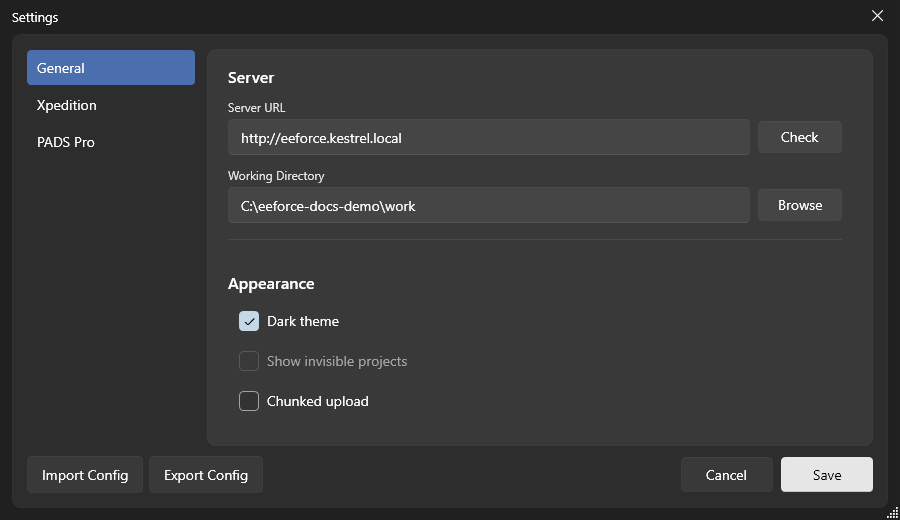
- Click Server Settings at the bottom of the sign-in screen.
- Enter the Server URL your administrator gave you, for example
http://eeforce.kestrel.local. - Click Check to make sure EEforce can reach it, then Save.
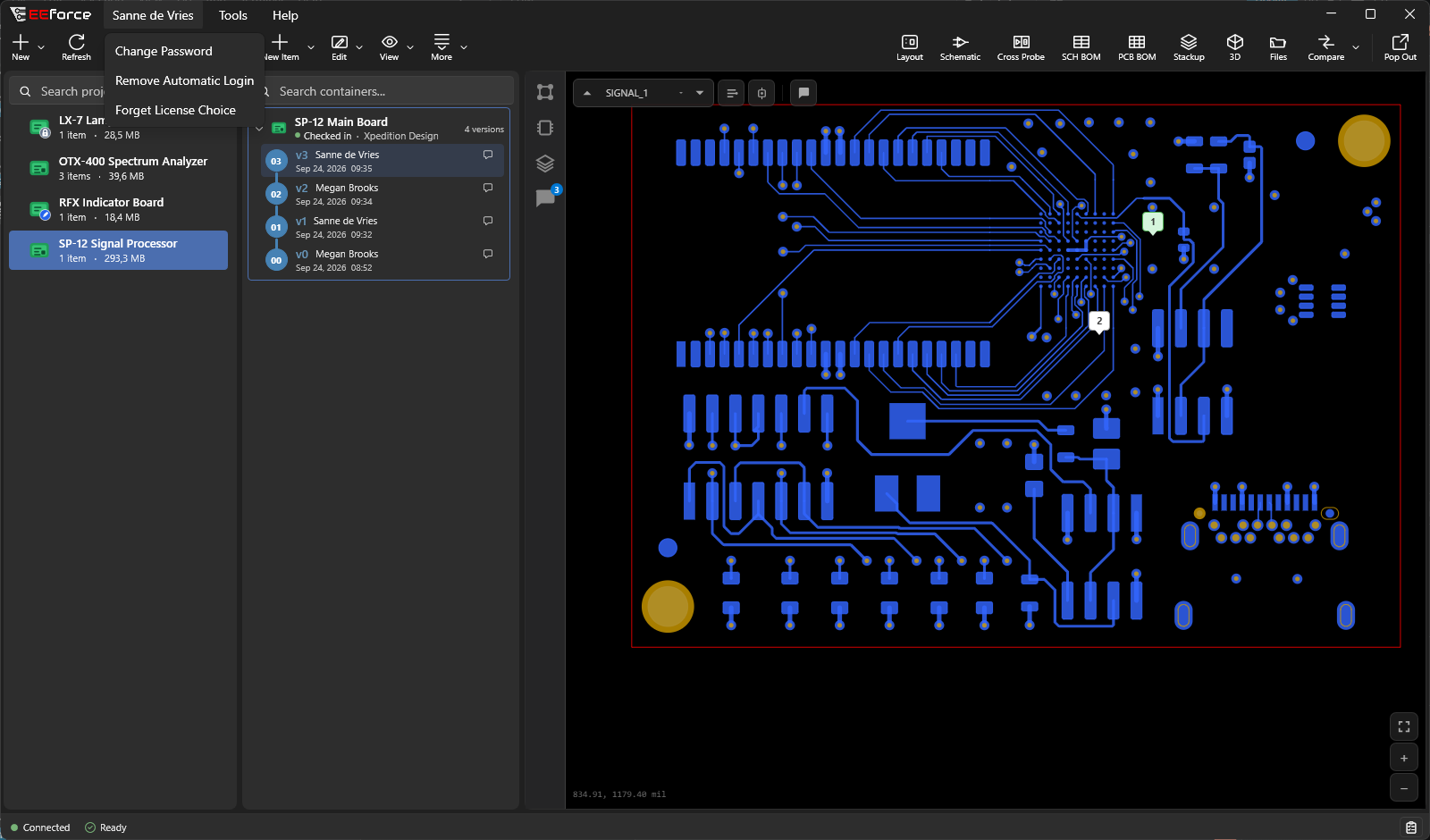
Your name menu
Once you're in, your name appears at the top left of the window. Click it for three options:
| Option | What it does |
|---|---|
| Change Password | Changes your EEforce password. Enter your current password and the new one twice. |
| Remove Automatic Login | Stops EEforce signing you in with SSO automatically. |
| Forget License Choice | Shows the licence step again at your next sign-in. |
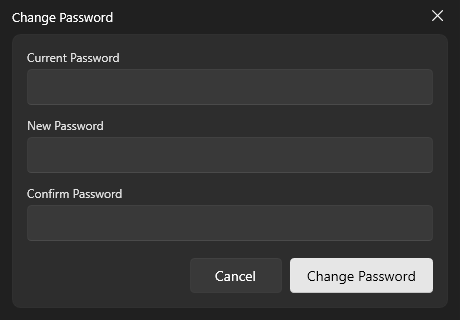
If you sign in with your company account (Active Directory or SSO), change your password the way your company normally does it — EEforce can't change it for you.
One session at a time
You can be signed in to the EEforce app on one computer at a time. If you sign in on a second computer while the first is still signed in, EEforce asks what to do:
- Switch to this machine. — carry on here. The other computer is signed out.
- Cancel logging in — stay signed in on the other computer.
If you still have designs checked out on the other computer, EEforce lists them. You can then only switch by choosing Cancel checkout(s) and switch to this machine., which throws away any changes in those checkouts. To keep your work, cancel, go back to the other computer and check the designs in first.
If your check-outs are on a computer that isn't running EEforce any more, EEforce shows a Checked-out designs elsewhere reminder after you sign in. Check them in when you can, so nothing gets lost. In the design list, such a design reads Checked out by you on that computer's name — see Checked out on another computer.
EEforce 365 doesn't count as a session here: you can keep it open in your browser while you work in the app.
Once you're signed in, EEforce keeps your sign-in fresh in the background. What happens when a session does end, or the network drops, is covered in Staying Connected.
What's next
- A Tour of the Window — find your way around
- Previewing Designs — look at a board