

Appearance
What's New in 26.12
EEforce 26.12 puts high-fidelity vector previews and collaboration on the design at the centre of the review. Inspect the details, pin a comment or sketch to the board, and work through the conversation with your team in context.
A redesigned desktop app brings the workflow together, and EEforce 365 brings the same viewer and conversations to your web browser.
If you are upgrading from 26.9 or earlier, read Before you upgrade first.
High-fidelity vector previews
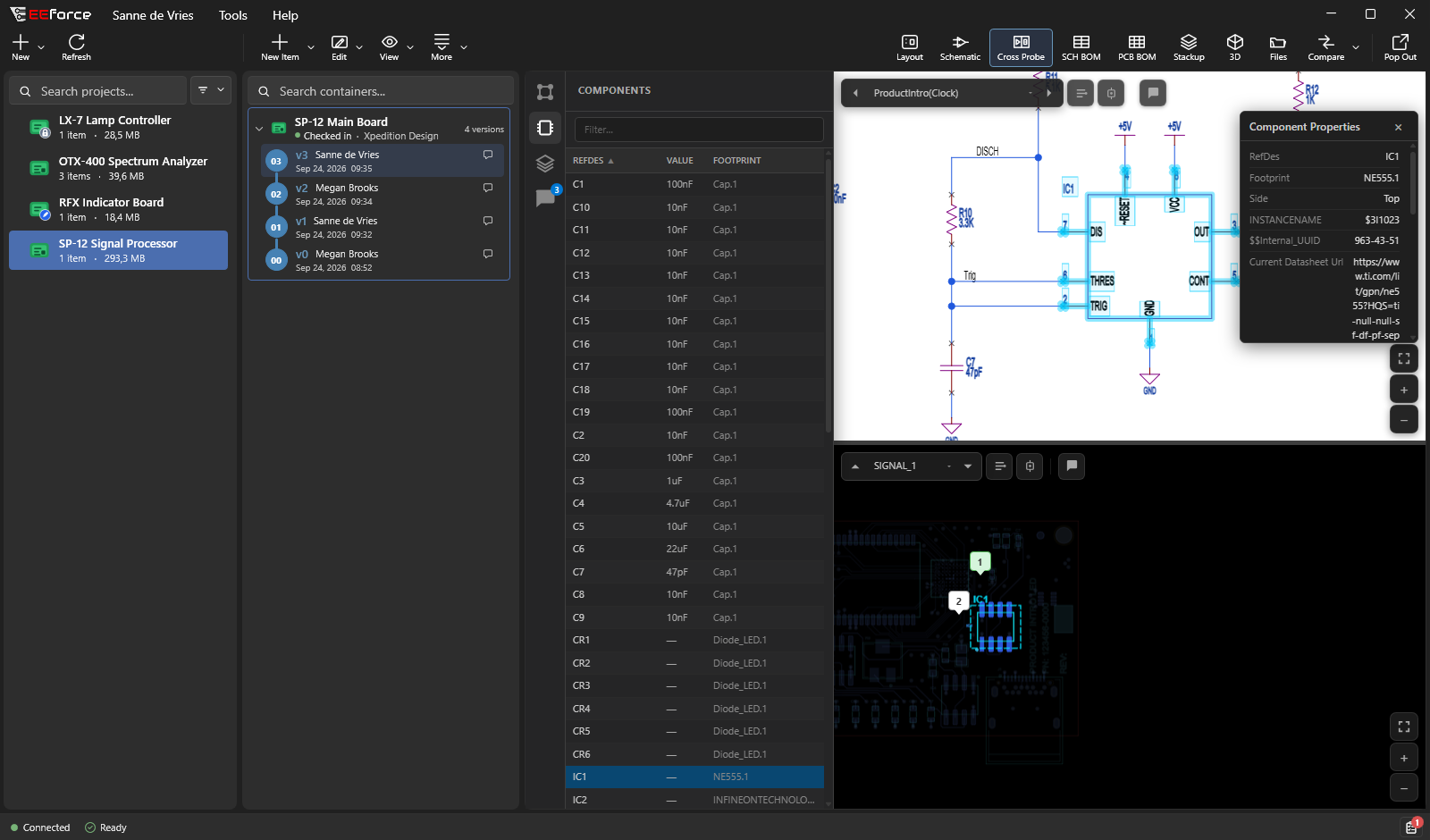
The new viewer renders layouts and schematics as high-fidelity vector previews, keeping design detail clear as you zoom in. Highlight a net or component and cross-probe between schematic and layout, without opening a design tool.
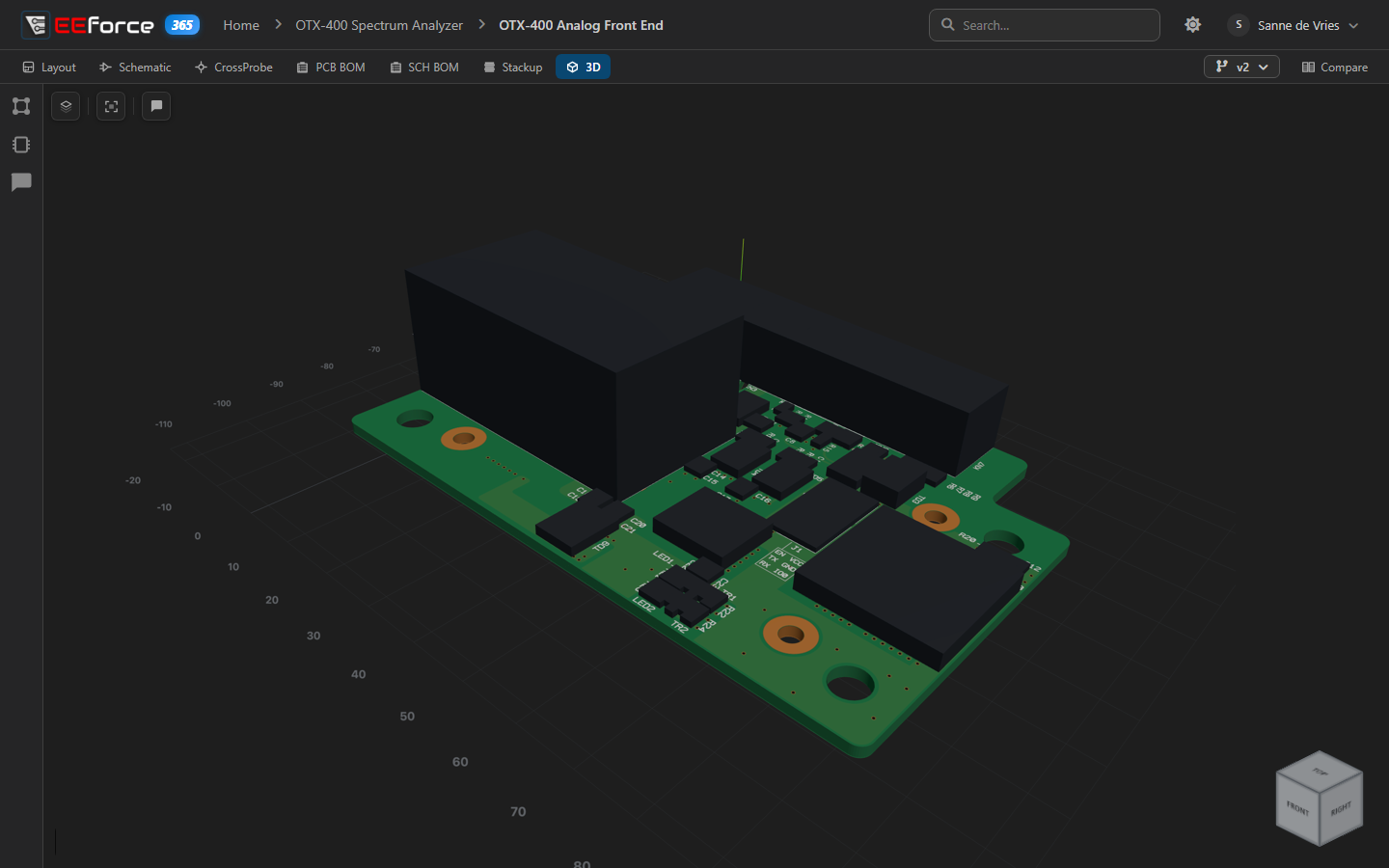
PCB and schematic BOMs, the board's specification and 3D also open in the same viewer. The 3D view shows component placement, the board outline and the stack-up without any external viewer installed. See Previewing Designs.
- Click to select, no modes. A click picks what is under the pointer — a net, a component, a pour — and a further click on the same spot takes the next thing there. Hovering shows what a click would pick. Selecting a net of a differential pair highlights both.
- Properties of the selection in a panel of their own: a component's value, part, footprint, placement and pins; a net's class, connections and the copper it is made of.
- Measure point to point on the board, snapping to pads, vias and track ends, in mm and mil.
- PCB specification. The PCB Spec view replaces the plain stack-up: board facts, the stack-up drawn to scale with the layers each via joins, via types, the drill table, routing per layer, differential pairs, power and ground, and net classes, with estimated impedances. It switches between mm and mil and prints as a specification sheet.
- BOMs group parts by any column, and set apart the parts nobody buys or places (test points, fiducials, mounting holes and the like) in a Not on the BOM section that stays out of the CSV.
- Assembly variants. Choose a variant, and every view shows what it fits: crossed out on the schematic, greyed on the board, hidden on the 3D board, set apart in the BOMs.
- Components on the 3D board show as their 3D models, as placement outlines raised to their height, or not at all.
- Cross-probe on two screens. Either view of the cross-probe page can open in a window of its own and stays cross-probed.
Assembly Assistant
The Assembly Assistant puts the BOM beside the 3D board, for hand assembly and first-article inspection: pick a line and the board turns to its side and zooms to its parts, with everything else greyed out. Group by part number, choose the side and the variant, and step through with the keyboard. Assembly sessions keep track of what has been placed — done or skipped, part by part — on the server, so a board can be built over several days, from any computer, with the whole team seeing the progress. See The Assembly Assistant.
Review designs together
Pin a comment on the layout, schematic or 3D model, or on a part in a BOM; call out an area, add a sketch, and discuss it in a thread right on the board. Replies can carry their own sketches and areas. Comments belong to the design, and a comment made on another version says so. They can be filtered and resolved, and appear for everyone as soon as they are posted. Anyone who can view a project can comment and reply, including Viewers; resolving needs the Contributor role. See Reviewing Designs Together.
The viewer also tells you when a newer version has been checked in while you're looking at an older one (with Go to latest), and when someone has the design checked out.
Redesigned desktop app
The EEforce app has been rebuilt on a modern user interface. The window layout, icons and toolbar are new, and the project list shows the state of every design at a glance. See A Tour of the Window.
- Organise projects with folders. Group a project's designs into folders, and move folders and designs around by drag and drop. Single project mode lets you focus on one project at a time. See Working with Projects.
- Browse files without checking out. The Files view lists every file in any version, and opens or downloads a single file on request.
- See your local work. For a design you have checked out, the Work Files view shows the files on your PC and where they live on disk.
- Editor launch feedback. EEforce notices when your design tool starts and tells you what's happening. The Active editors list in the status bar shows every editor it opened, and Finish Editing opens by itself when you close an editor on a checked-out design.
- Checkouts on another computer. A design you checked out on another computer shows as Checked out by you on that computer, and you can release it from here if you no longer need those changes.
- Copy / Move. One dialog copies a design — its latest version, a chosen version or its full history — into this project or another one, or moves it to another project or folder. It shows where the design will end up before you confirm. See Copying or moving a design.
- Generic Containers. The design kind for any collection of files, formerly called Folder, is now the Generic Container, and a new one can start from a Blank container.
- Check-outs and check-ins step by step. The status bar shows each step an operation goes through, and the Activity Log keeps one entry per operation with every step's size, time and outcome. See Following a check-out or check-in.
- The app remembers the project, design and version you were working on.
EEforce 365: design review in the browser
The EEforce viewer is now also available as a web application at your server's address followed by /365. Reviewers who don't have EEforce installed can:
- browse projects as tiles or a table, sorted by name or date, and search projects, folders and boards — with a picture of each board
- open any version of a board in the full viewer — layout, schematic, cross-probe, BOMs, stack-up and 3D — and follow the version history, branches included
- compare versions, or compare with a board from another project
- read, add and reply to comments
A project's Managers can also manage its access there: add people and groups, change their roles and remove them, without the desktop app. Every page updates live — a check-in, a check-out or an access change, made anywhere, shows up without reloading. See Managing Access.
EEforce 365 needs no licence seat. Access follows the project roles, exactly as in the app. Signing in to EEforce 365 doesn't end your session in the desktop app. See Reviewing in the Browser.
Compare versions and boards
Compare shows what changed between two versions of a board, with a legend for what exists only in one version and what overlaps. You can also compare a board's layout with another board, even one from a different project: the Compare Assistant lines the two boards up by a pair of points you pick, and matches their copper layers. Comparing works in the app and in EEforce 365. See Comparing Designs.
The EEforce Companion in Xpedition and PADS Professional
Every editor EEforce opens now carries the EEforce Companion, a small toolbar on the editor's title bar. It replaces the EEforce menu entries and editor scripts of earlier versions, so nothing has to be installed in the design tools. See Working in Xpedition & PADS Professional.
- Save & Check In saves the design and checks it in as a new version while the editor stays open.
- Comments in the editor. Show the team's comments as markers on the board or schematic sheet, open a conversation, reply, resolve, and add new comments with areas and sketches, without leaving the tool. Showing a comment takes the editor to the comment's layers and zoom, or its sheet.
- Previews always match your last save. Every save of a layout refreshes the data EEforce uses for its layout preview and Compare.
- 3D model on close. When you close Layout on a checked-out design, EEforce offers to export the board's 3D model for the 3D view first.
New web administration
Server administration is now a web application at your server's address followed by /admin. It replaces the administration windows in the desktop app — the app's Administration menu now simply opens it. Besides users, groups, projects, logs, LDAP and SSO, it adds:
- Storage — the Storage Assistant: how much space each project, design and version takes, pruning versions in bulk, and the trash, where deleted, pruned and moved items can be restored or deleted for good (see Storage Assistant)
- License — seats in use (with a Drop button to free a seat), the licence file details, and uploading a new licence file
- Audit Trail — a searchable, exportable record of who did what
- Settings → General — turn automatic client updates on or off
- Settings → Storage — choose where designs are stored (see below)
- Settings → Provisioning (SCIM) — let your identity provider create and deactivate EEforce users
See Web Admin Interface.
Cloud and network storage
The design store can now live in S3-compatible object storage or Azure Blob Storage instead of a local disk. Storage credentials and other sensitive server settings are encrypted where they are stored.
Read-only mode when the server licence expires
Your designs stay available even when a licence lapses. If the server licence expires, EEforce switches to read-only mode: everyone can still sign in, browse projects, preview designs and download files, but nothing can be checked out, checked in or changed. Administration keeps working, so a new licence can be uploaded — and it takes effect immediately. See Licensing.
Sign-in and sessions
- One session per person. Each account can be signed in to the desktop app on one computer at a time. Signing in on a second computer asks whether to switch there; the earlier session then ends. See Signing In.
- Sessions stay alive. Your sign-in is refreshed quietly in the background. If a session does end, EEforce tells you why instead of failing silently.
- Standards-based single sign-on. SSO is set up with just your identity provider's address (OpenID Connect discovery) and uses today's recommended sign-in flow. The desktop app signs in through an embedded sign-in window or your web browser — the administrator chooses which — and signing out also ends your session at the identity provider. See Single Sign-On (SSO).
- Live updates through firewalls. The server now sends live updates with Server-Sent Events instead of SignalR, which works better through corporate proxies and firewalls.
Installation and updates
- The client installer comes from your server. Download it from the server's start page (Download Client Software), and it arrives with your server's address already filled in. The installer asks for the address, checks for free disk space before it starts, and installs the .NET Desktop Runtime and WebView2 when they're missing — even without internet access. See Installing EEforce.
- Automatic client updates are a server setting. An administrator turns them on or off in the web administration (Settings → General → Enable client auto-update). When they are off and a newer app is required, the app says so instead of starting. See Updating EEforce.
- The server installer sets up HTTPS. A new Network page picks the ports and the certificate: a self-signed certificate, your own certificate, or no certificate at all (for testing only). The installer also sets the folder permissions for you, and its last page shows the server address to hand out to users. See Setting Up the Server.
- Faster server start. The server is now published as a native program, which starts faster and no longer needs a separate .NET runtime installed.
Fixes
A large number of corrections across the desktop app, chiefly around checking in and out multi-board projects, guarding locked versions against editing, and checking names when you move, rename or clone items.
Before you upgrade
Renamed and regrouped design actions. Folder containers are now called Generic Containers. Copy / Move… on the design and version menus replaces Clone and Move/Copy to Another Project, and also starts a new design from any version; Rename and Delete are under Manage.
Administration has moved to the browser. Administrators no longer manage users, groups, LDAP or SSO from the desktop app. Use the web administration at
/admin, signed in with the server's administrator password.Check your SSO settings. SSO now starts from the identity provider's Authority / Issuer URL. The separate authorization and token addresses are discovered automatically. Review the settings after the upgrade — see Single Sign-On (SSO).
Scheduled LDAP group sync, introduced in 26.9, is included. Groups are synced on a schedule rather than at every sign-in — see LDAP / Active Directory.