
Appearance
A Tour of the Window
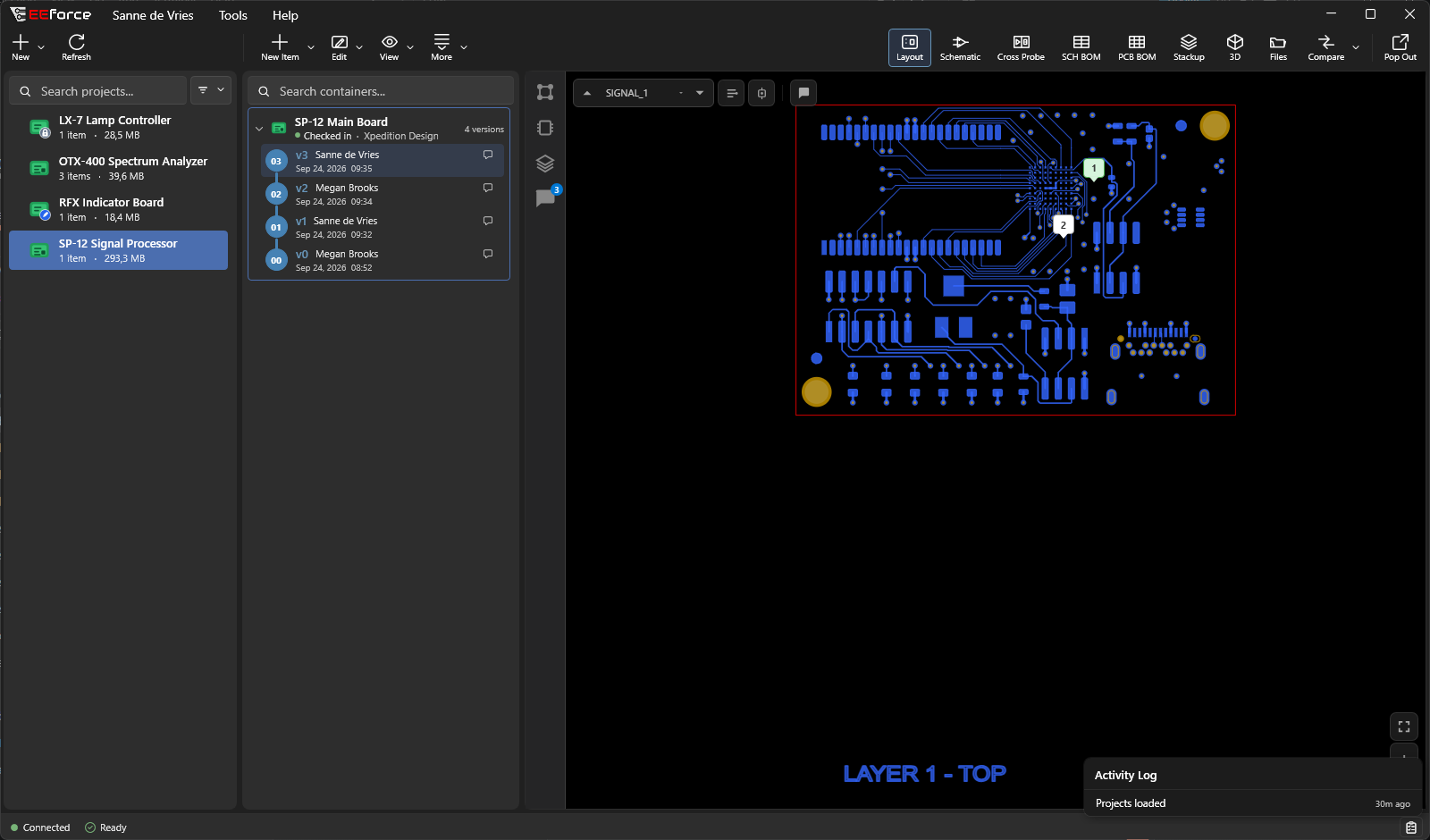
When you sign in, EEforce opens one window with everything in reach. Here is what you are looking at.
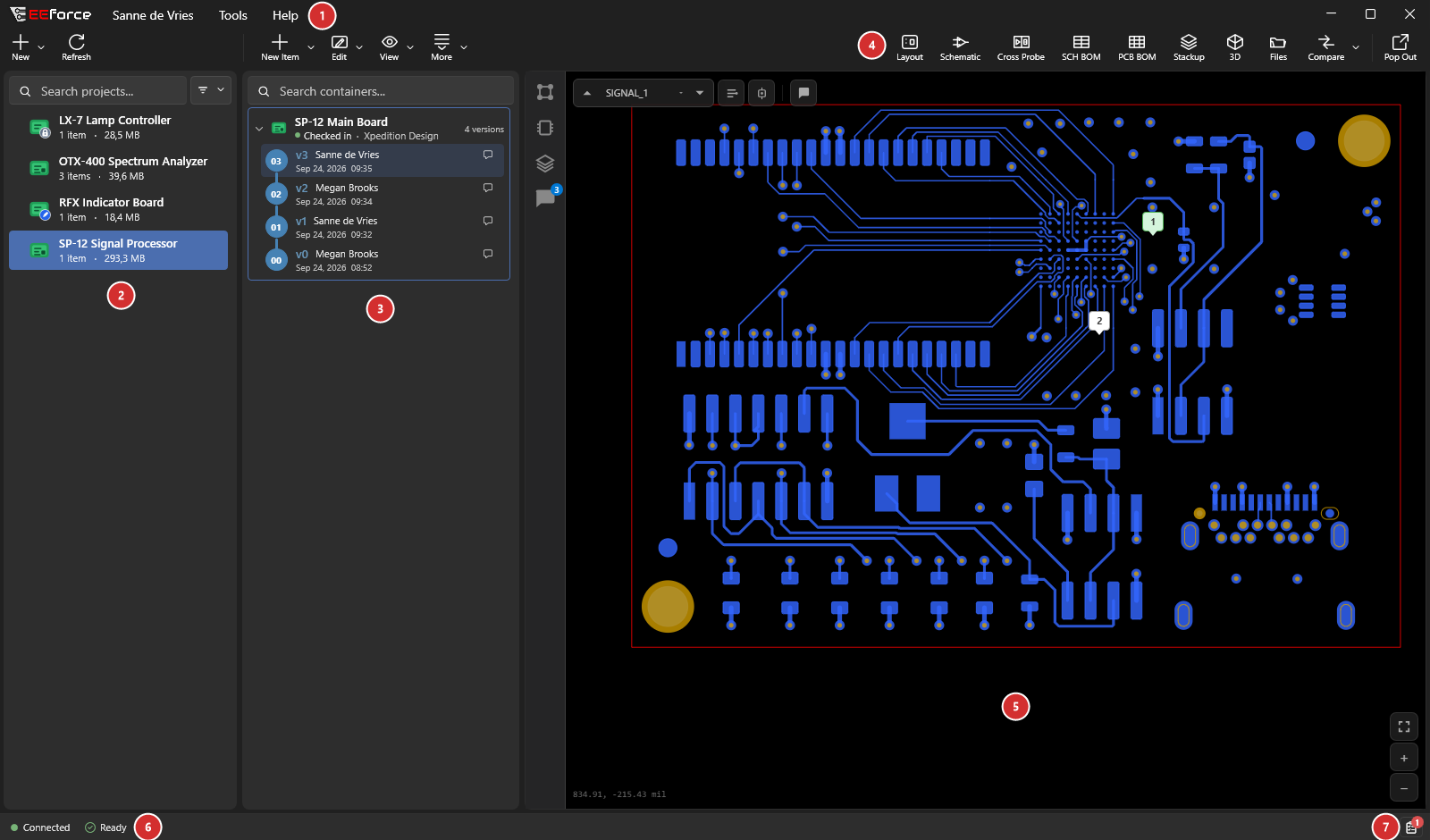
| Area | What it's for | |
|---|---|---|
| 1 | Menus | The menu under your name, Tools, Help and, for the administrator account, Administration. |
| 2 | Projects | Every project you have access to. Click one to see the designs inside it. |
| 3 | Designs & versions | The designs in the selected project. Click the selected design again to see its version history. |
| 4 | Preview modes | Switch between Layout, Schematic, Cross Probe, the two BOMs, PCB Spec, 3D and Files. |
| 5 | Design preview | The built-in viewer. Shows the selected version without opening a design tool. |
| 6 | Connection status | Shows whether EEforce is connected to the server. |
| 7 | Activity Log | Recent events, with a badge counting the ones you haven't seen. |
The three panes
EEforce reads left to right, the same way you work:
- Pick a project on the left.
- Pick a design in the middle. Click it again to open its version history.
- Look at it on the right.
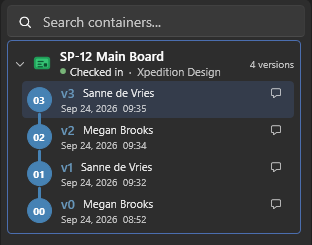
Each version shows its label (v0 is the first), who checked it in, when, and an icon if it has a check-in comment — click the icon to read the comment. The newest version is at the top, and the lines on the left show how the versions follow on from each other. Selecting a version previews exactly that version. See Designs & Versions for more.
Drag the dividers between the panes to make any of them wider.
The toolbar
The toolbar runs along the top in three groups, one above each pane:
- Above the projects: create a project or folder, project Properties, refresh the list, and More for the other project actions.
- Above the designs: create or import a design, Edit (check out), View, and More for everything else you can do with the selected design and version. While you have a design checked out, Edit In, Finish Editing and Revert appear here.
- Above the preview: the preview mode buttons, Compare and Pop Out.
Hover over a button to see its name. Buttons you can't use right now — because of what you've selected or your role on the project — are greyed out.
Preview modes
The buttons above the preview switch what it shows. A button is available only when the selected version contains that information.
| Button | Shows |
|---|---|
| Layout | The physical board: copper, components and outline |
| Schematic | The circuit diagram, sheet by sheet |
| Cross Probe | Schematic and layout together |
| SCH BOM / PCB BOM | The parts list, from the schematic or from the board |
| PCB Spec | The board's specification: stackup, vias, drills, routing, differential pairs, power and net classes |
| 3D | A 3D model of the assembled board |
| Files | The files inside the design |
Preview modes are covered in detail in Previewing Designs.
The menus
- Your name — Change Password, Remove Automatic Login and Forget License Choice. See Signing In.
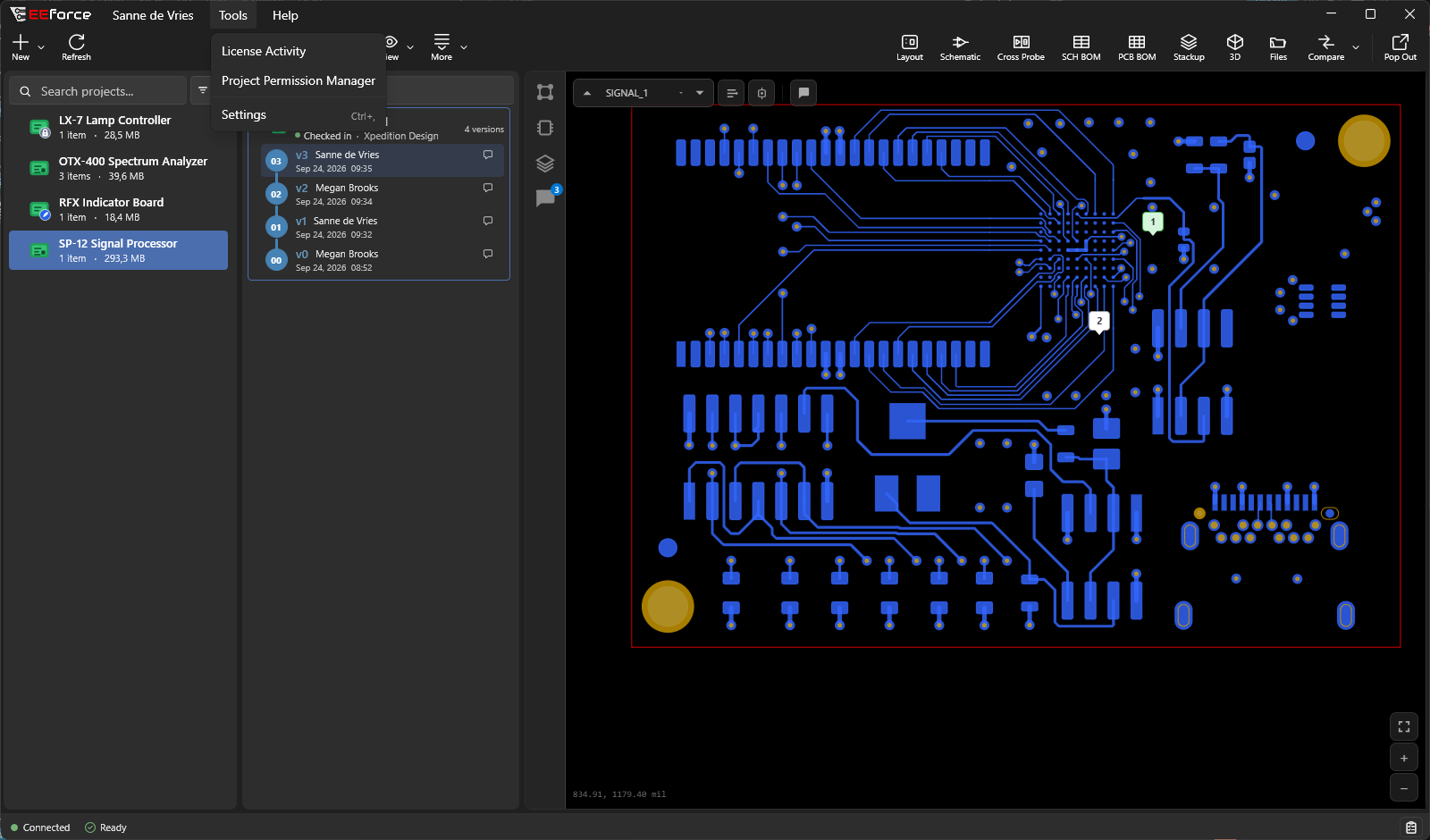
- Tools — License Activity (who is using which licence), Project Permission Manager (change roles on several projects at once, see Access & Roles) and Settings.
- Administration — shown only to the built-in administrator account. It opens the web administration in your browser.
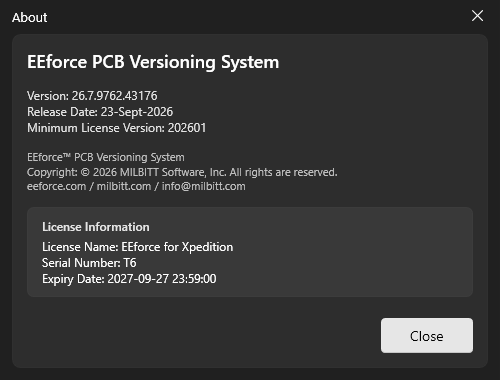
- Help — Documentation opens this guide; About EEforce shows the version you are running.
When the licence is close to its end date, a warning appears in the title bar so you can let your administrator know in good time.
The status bar
The bar along the bottom of the window shows:
- Connection status on the left: whether EEforce is connected to the server. See Staying Connected.
- What EEforce is doing: a short message, and a progress bar while it downloads or uploads. A check-out, a View or a check-in shows its steps instead, so you can see how far it has got and what is still ahead (see below).
- Active editors: how many Xpedition or PADS Professional editors EEforce has opened for you. Click it to see each editor, the design it is working on and when it started. Read-only copies opened with View are marked read-only. Each of these editors carries the EEforce Companion.
- Activity Log on the right: click it to see recent events, such as your sign-in, loaded projects and finished operations. The badge shows how many are new; opening the log clears it.
Following a check-out or check-in
While you check a design out, open it with View or check it in, the status bar shows the steps the operation goes through, lighting each one up as it is reached:
| Operation | Steps |
|---|---|
| Check out / View | Download, Verify, Extract, then Start editor and editor open — or Open folder for the Folder Browser. A multi-board panel also fetches its Linked designs. |
| Check in | Clean up, CCZ (preparing the previews), Package, Upload, Verify and Finalize. Save & Check In in the editor first takes a Copy of the open design. Generic containers and multi-board panels go straight to Package. |
A step that wasn't needed is marked as skipped — for example Download when View finds a copy of the version already downloaded on your PC. When the operation ends, the bar says Done in and the time it took, or Failed at and the step where it stopped, and then returns to the usual status line.
Each of these operations also gets one entry in the Activity Log: what it worked on (the project, the design and the version), when it started, and how it ended. Expand the entry to see every step with its size, time and transfer rate, the reason on the step that failed, and any warnings raised along the way. The newest entry and any that failed or warned stay expanded; earlier ones that went fine fold up to their summary line.
Focusing on one project
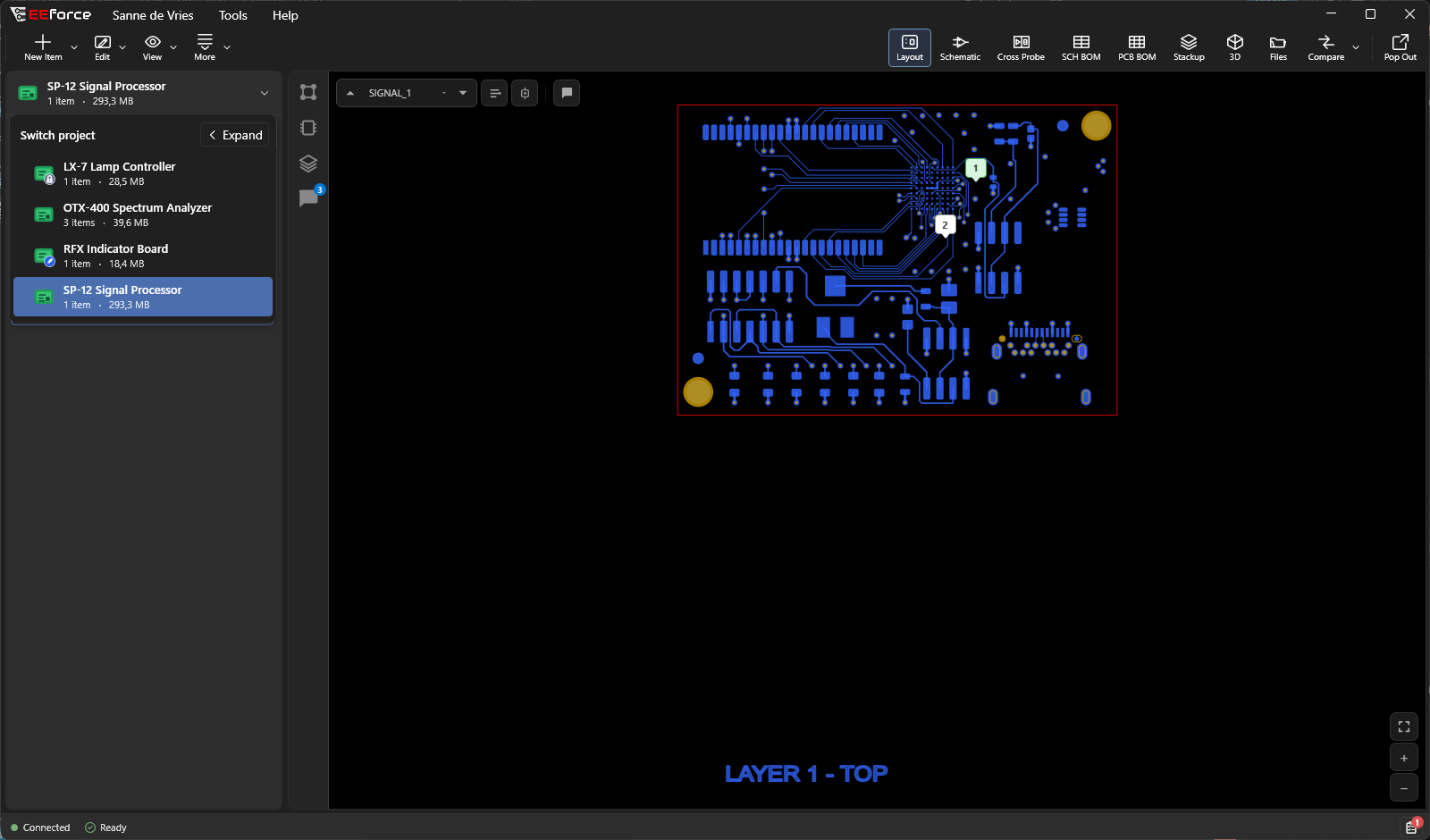
If you work in one project most of the day, turn on single project mode: right-click the project and choose Single project mode. The project list folds away and a banner at the top shows the current project. Click the banner to open the Switch project list and pick another project, or click Expand there to bring the full project list back.
Keyboard shortcuts
| Key | Does |
|---|---|
| F5 | Refresh |
| Ctrl+, | Open Settings |
| F1 | Open this documentation |
Your last session is remembered
Close EEforce and open it again: it returns to the project, design and version you were last looking at, and reloads the preview — you can pick up exactly where you left off.
Two things can hold EEforce open when you close it:
- Editors still open — close the Xpedition or PADS Professional editors EEforce started first. They are tied to EEforce, which checks your work in when you finish.
- Active checkouts — if you still have designs checked out, EEforce asks whether you really want to exit. Your checkouts stay safe on the server either way, but it's best to check them in first.
About EEforce
Help → About EEforce shows the version of the app you are running. Have it to hand when you contact support.