

Appearance
Finding a Design
The home page lists the projects you have access to, with the number of boards in each.
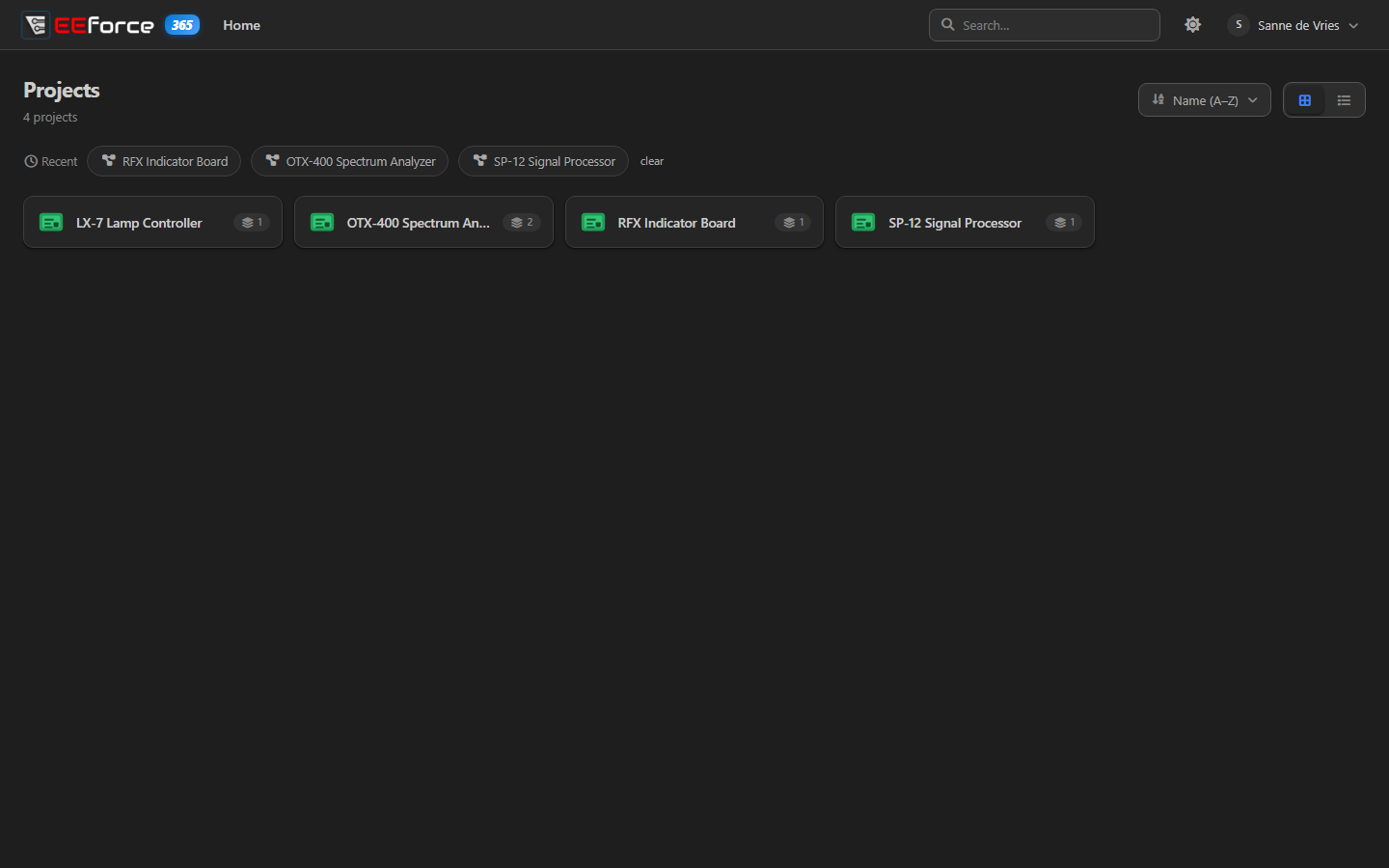
Browsing your projects
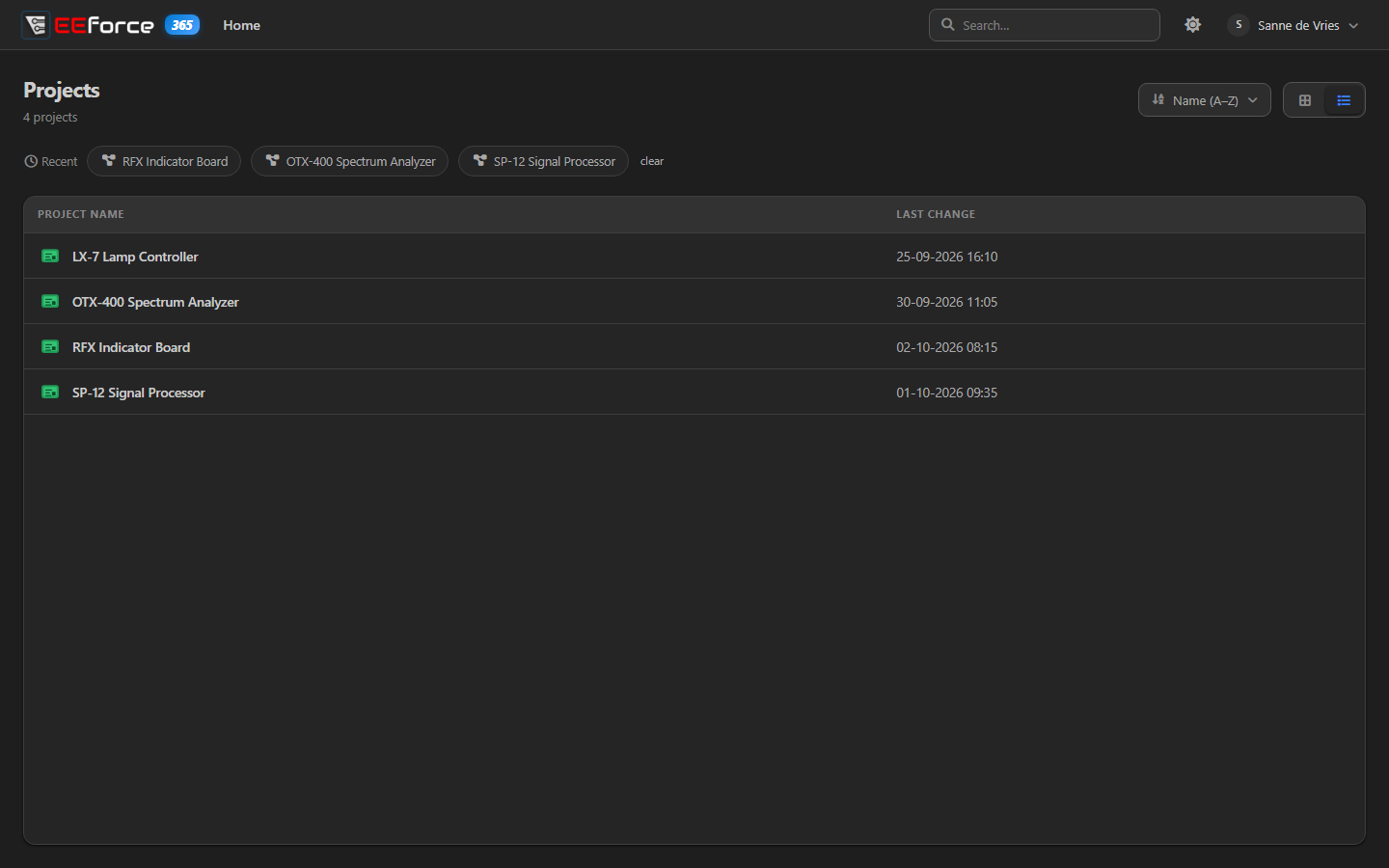
- Grid or table. The buttons in the top-right corner switch between project tiles and a table, which adds the date of each project's last change.
- Sort by name (A–Z or Z–A) or by date (Newest first or Oldest first).
- Recent shortcuts above the list take you straight back to the projects you opened last. clear empties the row.
- A long list is split into pages that fit your window; use the page controls under the list.
EEforce 365 remembers the view and the sort order for next time.
Searching
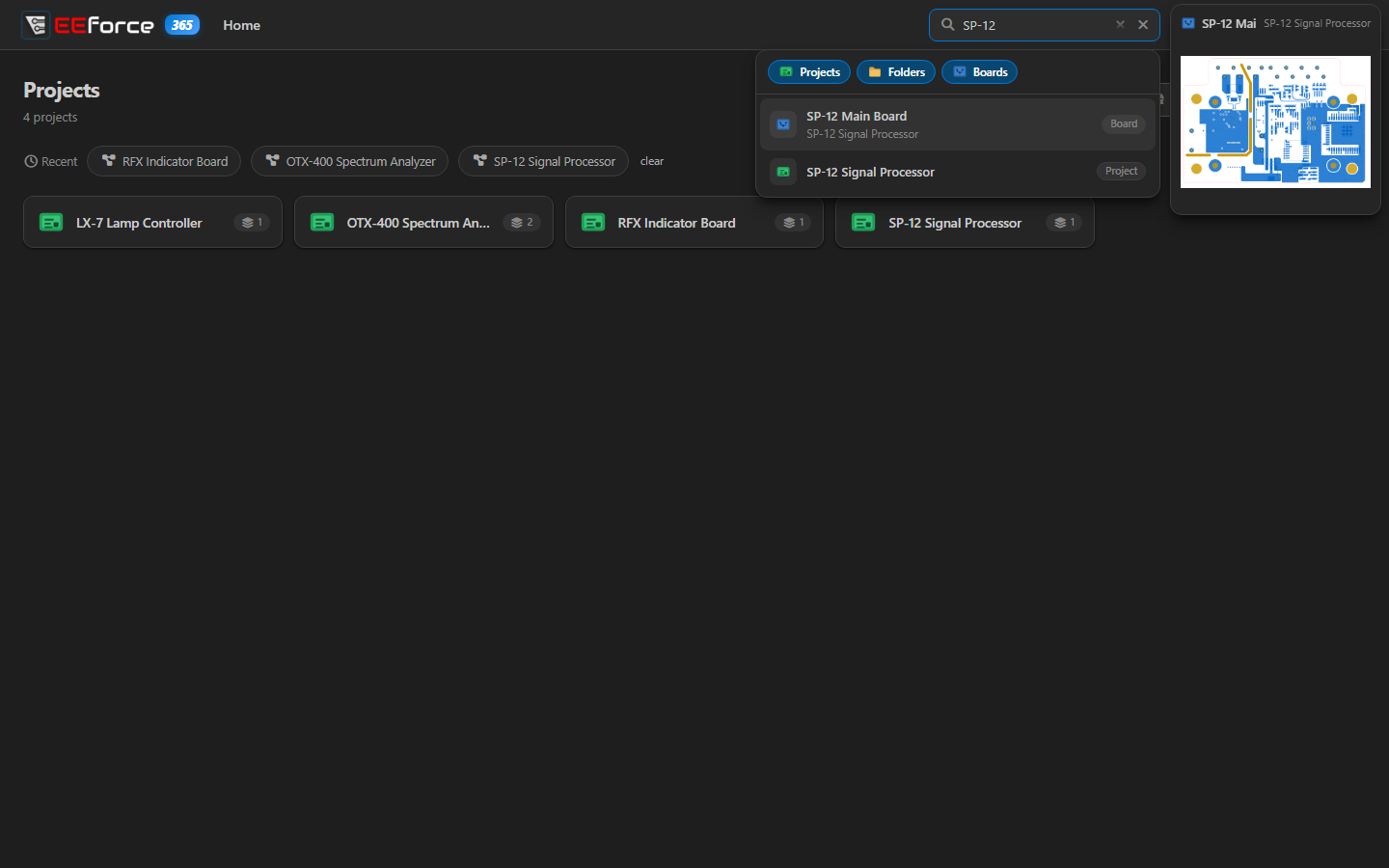
The Search box in the top bar covers everything you can see — projects, folders and boards. Start typing and the results appear underneath. The Projects, Folders and Boards chips switch each kind of result on or off. Point at a board to see a picture of it; press Enter to open the first result.
Inside a project
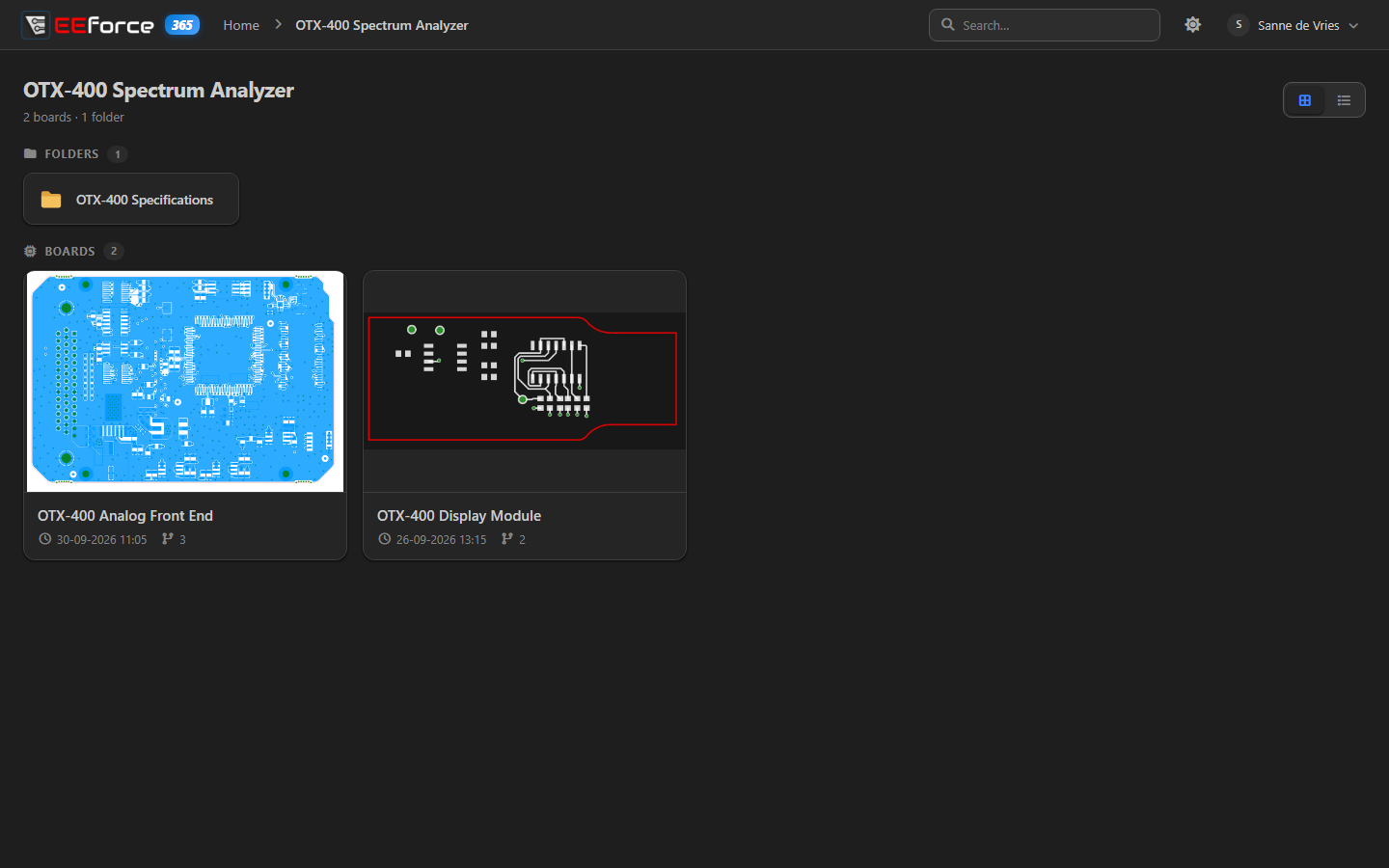
Open a project to see its folders and its boards. Each board card shows a picture of the board, when its latest version was checked in, and how many versions it has. The grid and table buttons work here too; the table lists each item's type, version count and last change.
If someone has a board checked out at the moment, its card says Checked out — they may be working on changes you can't see yet.
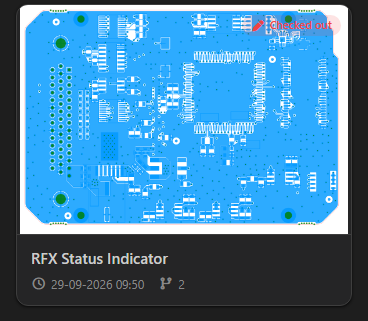
Click a board to open its latest version in the viewer; click a folder to see what's inside it. If you are a Manager of the project, the Access button at the top lets you choose who can see it — see Managing Access.
What's next
- Viewing a Design — open a board in the viewer
- Comparing Designs — see what changed between versions