

Appearance
Storage Assistant
The Storage Assistant shows where the server's disk space goes, and gives it back. It measures the vault down to each project, design and version, prunes old versions in bulk, and holds the trash: everything that was deleted, pruned or moved away, ready to be restored or deleted for good.
Open it in the web admin under Storage. Like the rest of the web admin, it is for the server's administrator account only.
Storage Assistant or storage settings?
The Storage Assistant works with what is in the vault. Where the vault and the trash live — local folders, S3-compatible storage or Azure Blob — is set under Settings → Storage. See Storage.
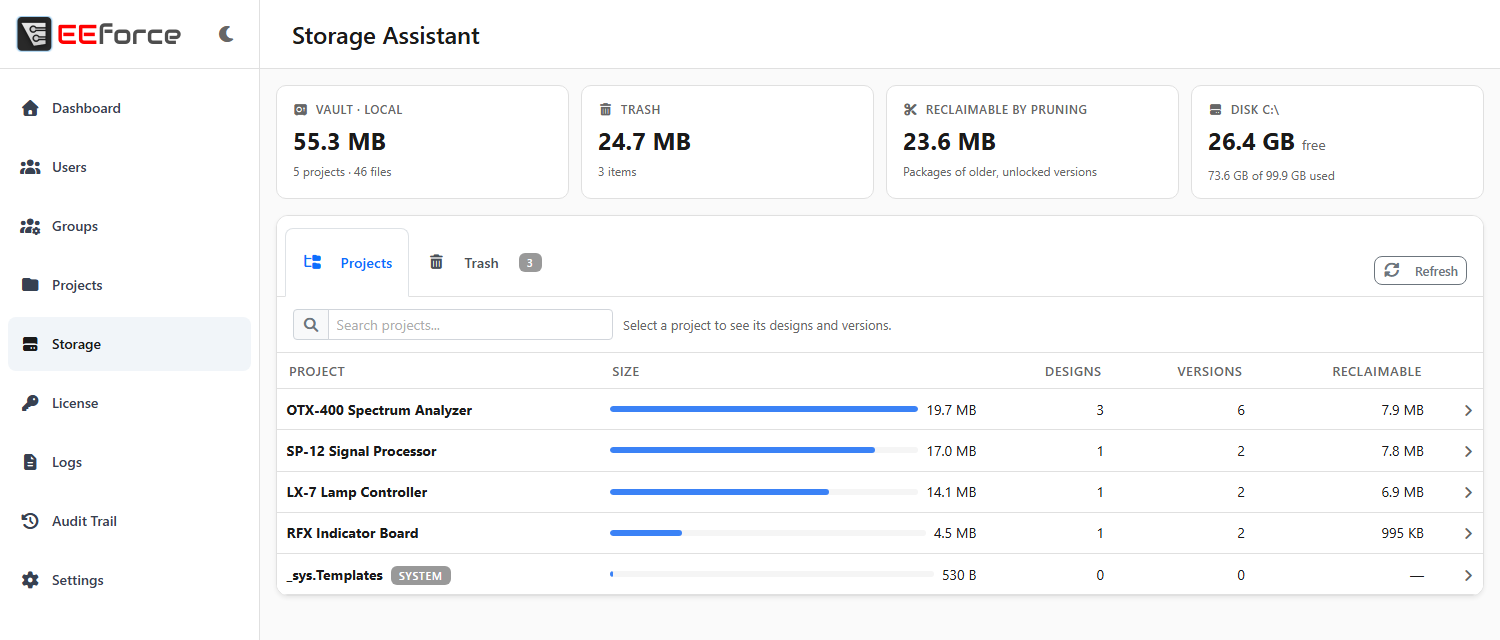
The summary
The cards along the top give the picture at a glance:
| Card | Shows |
|---|---|
| Vault | How much the vault holds, how many projects and files, and the storage type (for example Local). |
| Trash | How much the trash holds and how many items. Uploads that were started but never finished are counted here too. |
| Reclaimable by pruning | What pruning would free: the packages of older versions that aren't locked. |
| Disk | Free space on the disk the vault is on, and how much of it is used. The bar turns red when less than a tenth is free. Shown for local storage only. |
Click Refresh to measure again.
Where the space goes
The Projects tab lists every project with its size, its number of designs and versions, and how much pruning would free in it. Type in the search box to find a project. The templates project, _sys.Templates, is marked System.
Click a project to see its designs, largest first. The largest one opens straight away; click any other to open it. Each design shows its folder, its number of versions, the size of its comments and how much pruning would free. A badge names its kind when it isn't a board, and shows who has it checked out.
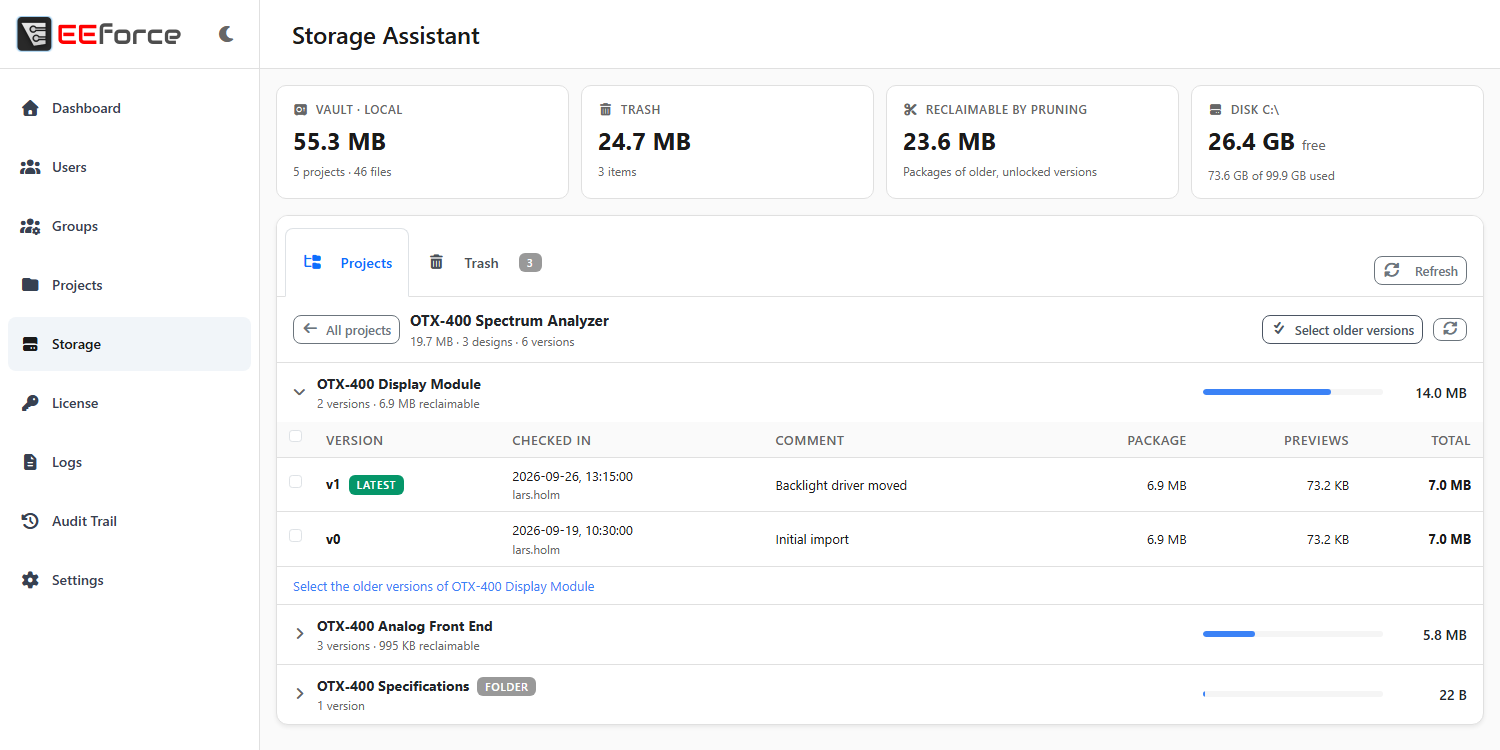
Each version shows:
- its number, with badges for Latest, its tag, a lock when it is locked, and Pruned when its package is already gone
- when it was checked in and by whom, and its check-in comment
- the size of its Package (the design files a check-out downloads), its Previews, and the Total
All projects takes you back to the list.
Pruning versions in bulk
Pruning removes a version's package — usually by far its largest part — while the version stays in the design's history. In the desktop app a project Manager prunes one version at a time (see Managing Versions); here you can prune many at once, across a whole project.
Open a project.
Tick the versions to prune. The box in a design's header ticks all of its versions. Locked versions can't be ticked.
To pick the usual candidates quickly, click Select older versions: it ticks every version in the project that still has its package and is neither locked nor its design's latest. Select the older versions of design, under a design's versions, does the same for one design.
The bar at the bottom shows how many versions are selected and how big their packages are. Click Prune….
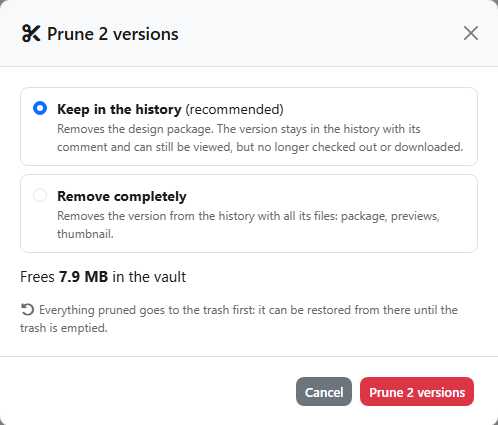
Choose how far to go, and confirm:
| Choice | What happens |
|---|---|
| Keep in the history (recommended) | Removes the design package. The version stays in the history with its comment and can still be previewed, but it can no longer be checked out or downloaded. |
| Remove completely | Removes the version from the history together with all its files: package, previews and thumbnail. |
The dialog shows how much space the prune frees. It warns you when a selected version is its design's latest; removing that one completely lets the design's next check-in take its number again. Versions that are already pruned are skipped when you keep them in the history; choose Remove completely to take them out of the history too.
When the prune is done, a message says how many versions were pruned and how much space was freed, and lists any that were skipped and why.
Nothing is lost straight away
Everything pruned goes to the trash first. Until the trash item is deleted, you can restore it.
The trash
Projects and designs that are deleted, versions that are pruned (here or in the desktop app), and designs that are moved to another project all leave their files in the Trash tab. The badge on the tab counts the items.
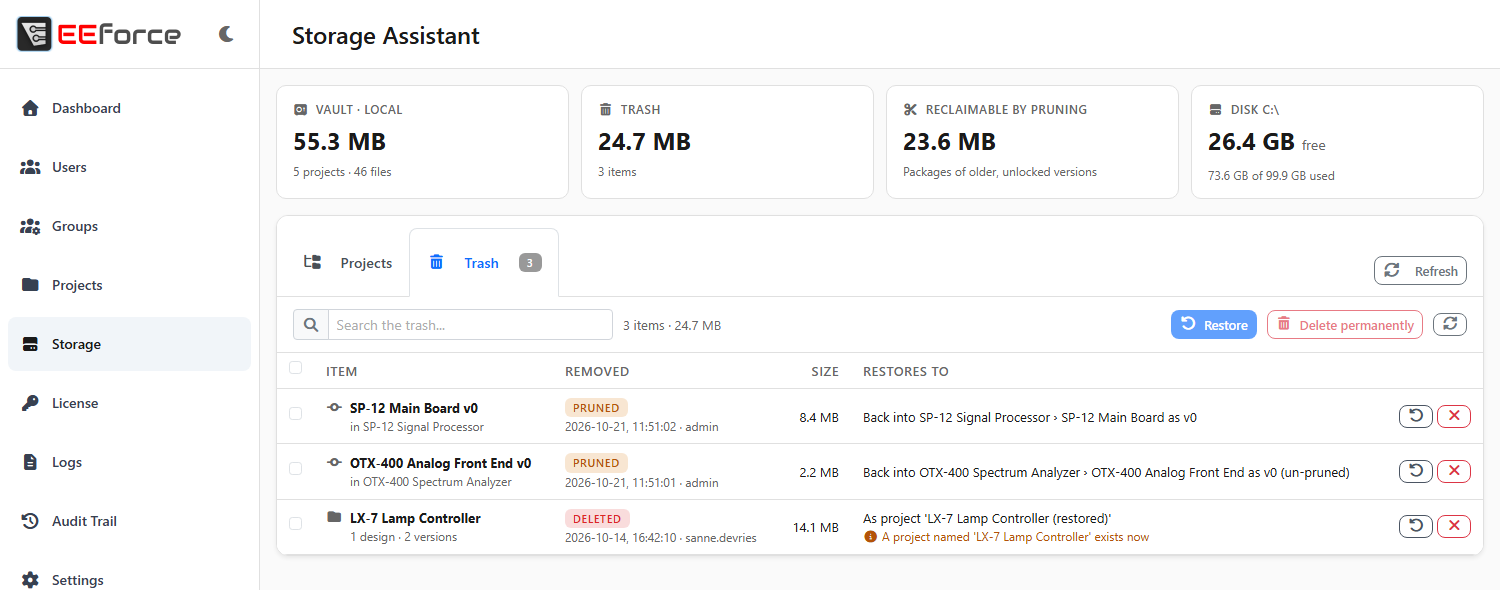
| Column | Shows |
|---|---|
| Item | The project, design or version, and the project it was in. |
| Removed | Deleted, Pruned or Moved, when, and by whom. |
| Size | How much space it takes in the trash. |
| Restores to | Exactly where a restore would put it. A note explains when that isn't the place it came from. |
Type in the search box to filter the list by name, project, person or kind.
Restoring
Click the restore button on an item, or tick several items and click Restore. A confirmation lists each item with where it will go. Restored items appear for everyone straight away, in the desktop app and in EEforce 365.
An item goes back where it was whenever that place is free. When it isn't, EEforce finds the nearest sensible place and tells you in Restores to before you confirm:
| Situation | Where it goes |
|---|---|
| A pruned version that was kept in the history | Back into its design under its own number, with its package again (un-pruned). |
| A version whose design still exists, and whose number is free | Back into its design under its own number. |
| A version whose number has been taken by a newer check-in, or whose design is gone | A design of its own, design (restored vN), with the version as its v0, in the same project. |
| A design whose name is free | Back into its project, checked in. It returns to its folder if the folder still exists, otherwise to the top of the project. |
| A design whose name has been taken since | Into its project as name (restored). |
| A design whose project has been deleted | Re-creates the project, with the design in it. |
| A project whose name is free | Back as the same project, with its access list. |
| A project whose name has been taken since | As name (restored). |
A Moved item is the copy of a design's files that stays behind when the design is moved to another project; the list says where it went. Restoring it puts the design back into the project it came from, as a design of its own. The moved design stays where it went, so afterwards both projects have one.
Items without a readable project snapshot can't be restored; Restores to says so. You can still delete them.
Deleting for good
Click the delete button on an item, or tick several and click Delete permanently. The confirmation shows how much space this frees.
WARNING
Deleting from the trash cannot be undone. Delete only what nobody will need again — once it's gone, not even an administrator can bring it back.
Read-only mode
While the server is in read-only mode because its licence has expired, the Storage Assistant still measures storage and lists the trash, and you can still delete trash items to free space. Pruning and restoring change projects, so they wait until a valid licence is in place.
In the Audit Trail
Every prune, restore and permanent delete made here is recorded in the Audit Trail, with what it was and how much space it involved.
What's next
- Storage — where the vault and the trash live
- Web Admin Interface — the rest of the console
- Managing Versions — locking and pruning in the desktop app