
Appearance
Checking Out & Checking In
When you're ready to actually change a design, not just look at it, you check it out, make your edits in Xpedition or PADS Professional, then check it in as a new version. EEforce makes sure only one person does this at a time, so no one's work is ever overwritten.

Two states
A design is always in one of two states:
| State | What it means |
|---|---|
| Checked in | Safely stored on the server. No one is editing it. Anyone can view it, and anyone with edit rights can check it out. |
| Checked out | Someone is editing it. It's locked to that person until they check it back in or cancel. Everyone else can still view it. |
The design list says who has a design checked out, and when. A design you checked out on another computer reads Checked out by you on followed by that computer's name. See Checked out on another computer.
Just looking? Use View instead
If you only need to look at a design in Xpedition or PADS Professional, not change it, right-click the design and choose View. This opens a read-only copy without locking anything, so other people can keep working. Most of the time the built-in preview is faster still and doesn't open a design tool at all.
Checking out (start editing)
You need the Contributor or Manager role on the project, and the design must be checked in.
Right-click the design, or use Edit on the toolbar.
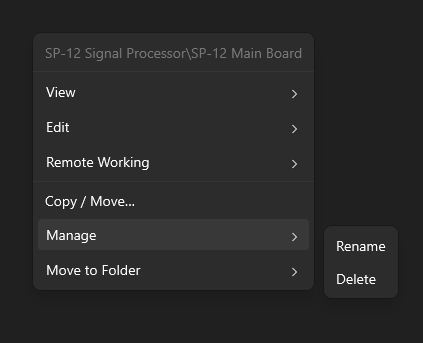
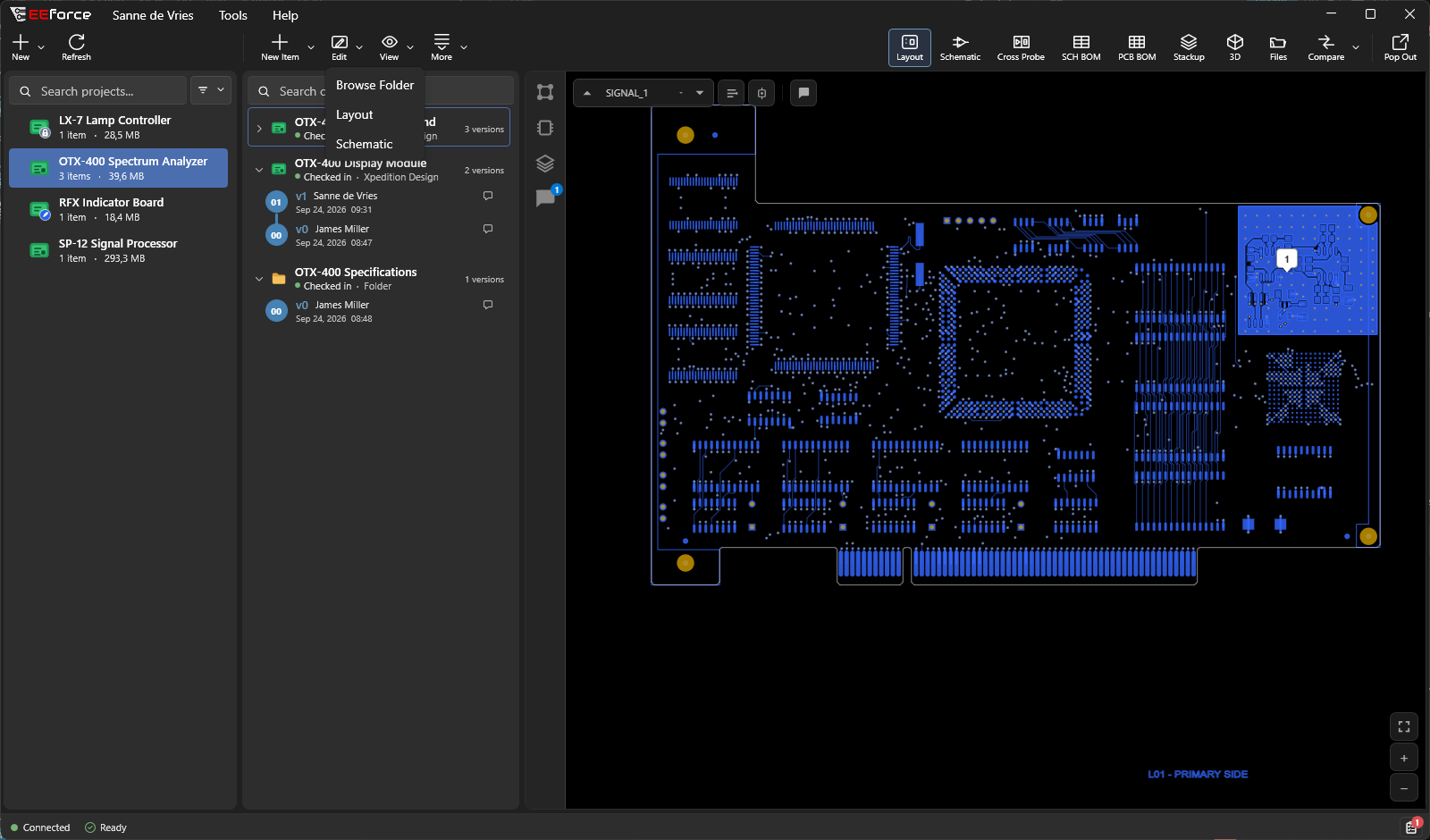
Choose Edit, then how you'd like to open it. Folder Browser, Layout and Schematic are always offered; Xpedition designs also get Panel and Drawing. PADS Professional doesn't have those last two.
A choice that can't work on your computer is greyed out; point at it to see why. Panel needs Fablink and Drawing needs the drawing editor installed, and a design made in the netlist flow — its schematic drawn in another tool — has no Schematic to open.
EEforce downloads the design to your PC and opens it. The status bar shows each step as it happens — Download, Verify, Extract, Start Layout, Layout open — and the editor then appears in the Active editors list at the bottom of the window. See Following a check-out or check-in.
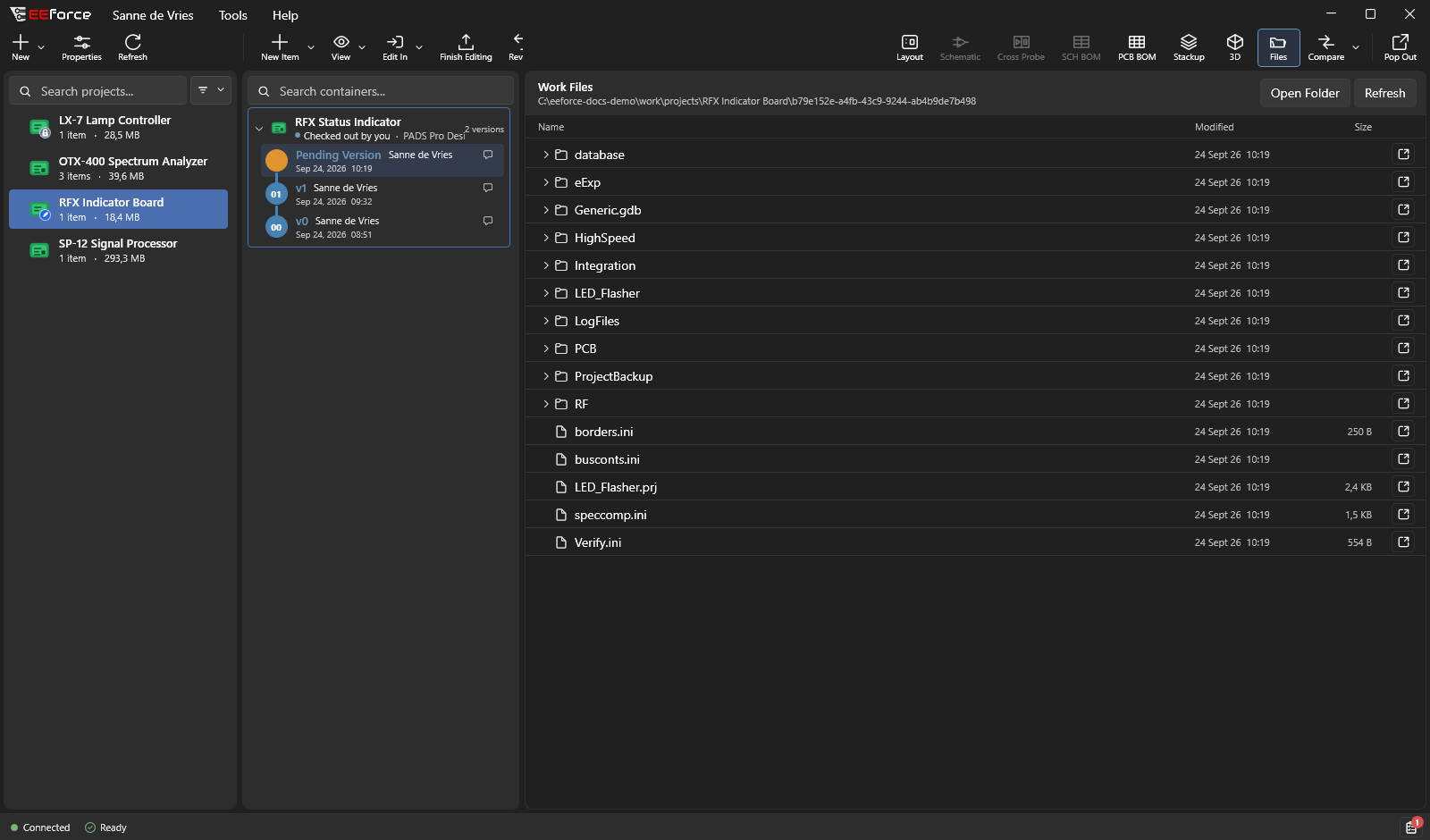
Once checked out, a few things change to show you're now editing:
- The design is marked Checked out by you.
- A pending version appears at the top of the version history. This is the new version you're building.
- The toolbar switches to editing actions: Edit In (open the design again, in another tool), Finish Editing and Revert.
In the editor, the EEforce Companion sits on the title bar. From there you can save versions and work with the team's comments without leaving the tool. See Working in Xpedition & PADS Professional.
WARNING
While you have a design checked out, no one else can edit it. Check it in or cancel as soon as you're done, so the rest of your team isn't waiting.
Checking in (save a new version)
When your edits are done:
- Close the editor. For a layout, the Companion first offers to export the 3D model. Then the editor asks about saving, as it always does. See Closing the editor.
- Finish Editing opens by itself as soon as the editor has closed. (You can also click Finish Editing on the toolbar, or right-click the design → Finish Editing.)
- Add a comment describing what you changed. It shows up in the version history and helps everyone understand the design's story.
- Optionally tick Remove 3D files or Remove unnecessary files (log files, output files and other non-essential files) to keep the saved version lean.
- Click Finish Editing.
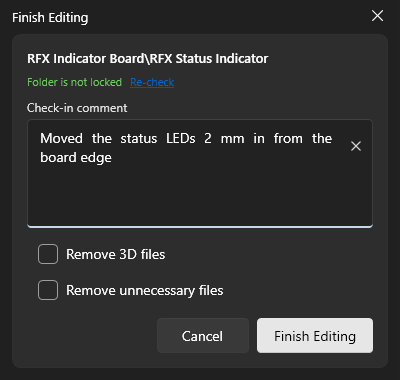
EEforce prepares the previews, uploads your changes as a brand-new version and unlocks the design for everyone else. You can follow each step along the bottom of the window, and the finished check-in is listed in the Activity Log with every step's size and time.
Close the editor first
EEforce won't check a design in while an editor it opened still has the design open. It says This command cannot be run while the object is open by editor — close the editor and try again. The dialog also shows a lock status: if it says the folder is locked, something else still holds a file. Close it and click Re-check.
If a preview can't be prepared, the check-in still goes through, and the status bar says Check-in completed without some previews. The new version then lacks that view — for example Schematic — and the check-in's entry in the Activity Log says which preview is missing. Everything else is saved as usual.
Generic containers and multi-board panels have a shorter check-in window: just the comment.
Saving a version without closing the editor
You don't have to close Xpedition or PADS Professional to save a version. Click Save & Check In on the Companion in the editor's title bar. EEforce saves the design, uploads it as a new version, and leaves the tool open and the design checked out to you, so you can keep going.
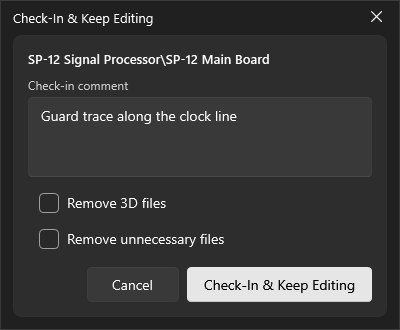
See Saving a version without closing the editor.
Cancelling a check-out (discard changes)
Changed your mind? Right-click the design and choose Cancel Checkout. The toolbar's Revert button does the same. The dialog spells out what happens: This will discard all local changes and revert to the last checked-in version. It also shows the lock status, so you can re-check that nothing is still open in your design tool.
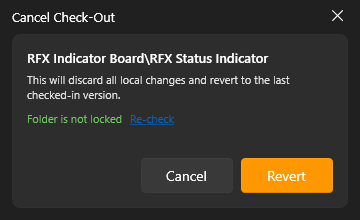
Reverting throws away everything you did since checking out and returns the design to its last checked-in version. No new version is created, and the design unlocks for everyone else.
WARNING
Cancelling permanently discards your local changes. Only do this if you're sure you don't want to keep them.
Checked out on another computer
If you checked a design out on another computer (your laptop, say), EEforce shows it as Checked out by you on that computer. Its pending version explains that the working copy is on that machine and becomes a new version when it's checked in there. On this computer you can't edit it or check it in; the Files view tells you the working files are on the other machine.
To check it in, go back to that computer. If you no longer need those changes, you can release the design from here: right-click it → Cancel Checkout (or Revert). EEforce warns that this discards any changes made on the other computer. Choose Cancel checkout to go ahead, or Keep to leave it checked out.
Going back to an older version
Every check-in is kept. Select a design and click it again to see its history, then:
- Select any version to preview exactly how the design looked then.
- Download files from an old version without disturbing the current one. See Browsing & Downloading Files.
- Check out an older version to base new work on it. Checking out a version that isn't the newest starts a branch: your next check-in is based on that older version, while the newer versions stay exactly as they are.
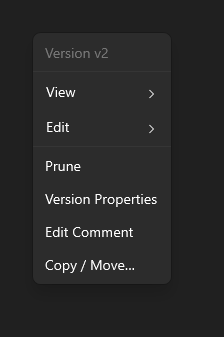
The version menu also holds the manager actions (prune, version properties and edit comment) and Copy / Move…, described in Managing Versions.
If something goes wrong
| Situation | What to do |
|---|---|
| "Design is locked" but you need to edit | Someone else has it checked out. The design list shows who. Ask them to check in, or ask an administrator to release it. |
| This command cannot be run while the object is open by editor | Close the editor that has the design open, then try Finish Editing or Revert again. |
| The lock won't clear when checking in | Close every Xpedition or PADS Professional window that has the design open, then click Re-check in the dialog. |
| EEforce won't close | EEforce stays open while editors it started are still running. Close them first. If you still have designs checked out, EEforce asks whether you really want to exit. |
| Your connection dropped mid-edit | Your check-out is safe on the server. Sign back in and it's still yours. See Staying Connected. |
If a check-out gets stuck
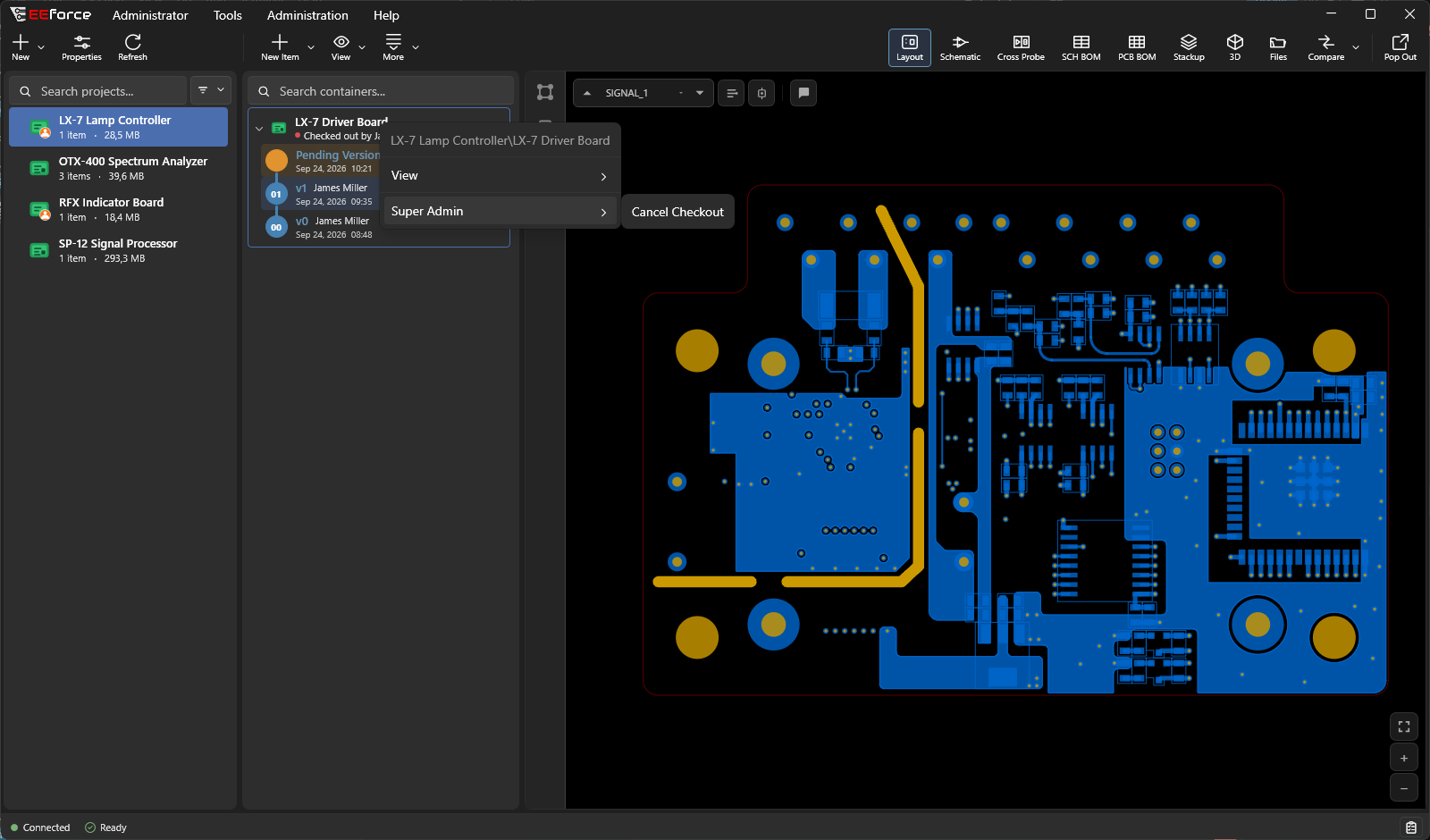
If someone has left a design checked out and can't release it (they are away, or have left the company), the server's built-in administrator account can release it: right-click the design and choose Super Admin → Cancel Checkout.