

Appearance
Setting Up the Server
The EEforce server is the shared home for every project: it stores all designs and versions, hands out licences and serves the web admin, the client download and EEforce 365. It is installed once by your IT team on a Windows machine; after that, users only install the desktop app.
Before you start
| Requirement | Details |
|---|---|
| OS | Windows Server 2022/2025 (Core, Essentials, Data Center) or Windows 10/11 (LTSC, Pro, Enterprise) |
| CPU | 4+ vCPUs recommended |
| RAM | 4 GB free when idle (minimum) |
| Storage | 20 GB+ on local disk; NVMe/SSD recommended |
| Network | Reliable LAN between server and clients |
| Licence file | Prepared for this machine — see Licensing |
| Backup | Windows shadow copy or equivalent backup solution |
Have these decisions ready before you run the installer:
- The layout — where the software, the vault and the trash folder should live.
- The network — which HTTP and HTTPS ports the server should listen on, and how it should provide HTTPS: a self-signed certificate for a quick start, or your company's own certificate (a
.pfxfile that includes the private key) for production. - The address — the name users will reach the server by. Using a host name (with a DNS record or hosts entry) rather than a raw IP address makes certificates and later changes much easier.
WARNING
Using a network share for the vault works but slows check-ins and check-outs down. If you use one, make sure the IIS application pool identity has full read/write permissions on the path.
Get the server package
- Download the latest server package from the Support Portal. The file is named
Server_XX.X.zip(version numbers vary). - Extract the ZIP to a folder of its own.
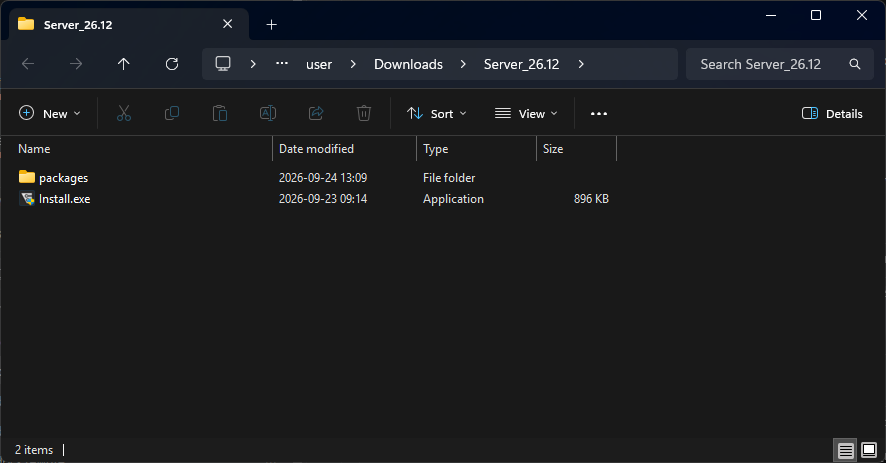
The folder contains Install.exe and a packages folder with everything the installer needs.
Run the installer
Run Install.exe and allow it when Windows asks for administrator rights. The welcome page appears:
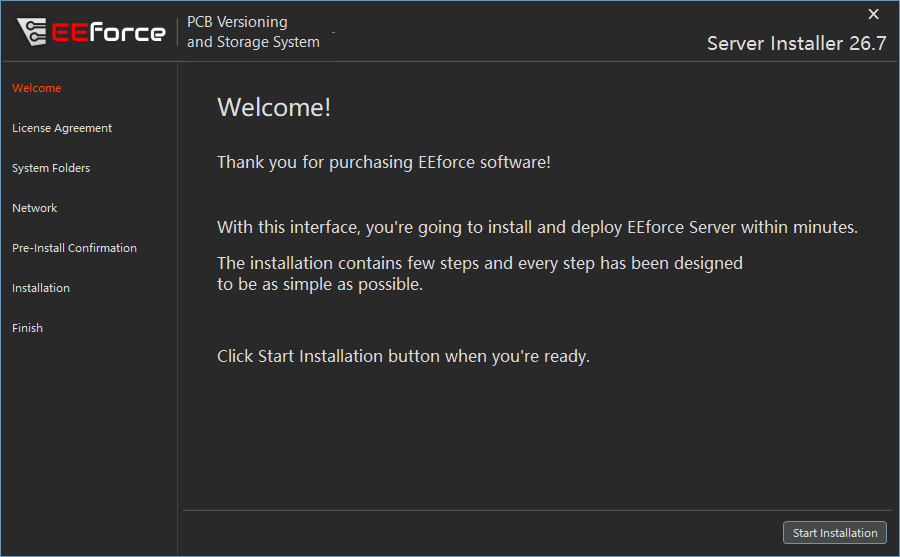
Click Start Installation — this only starts the wizard; nothing is installed yet.
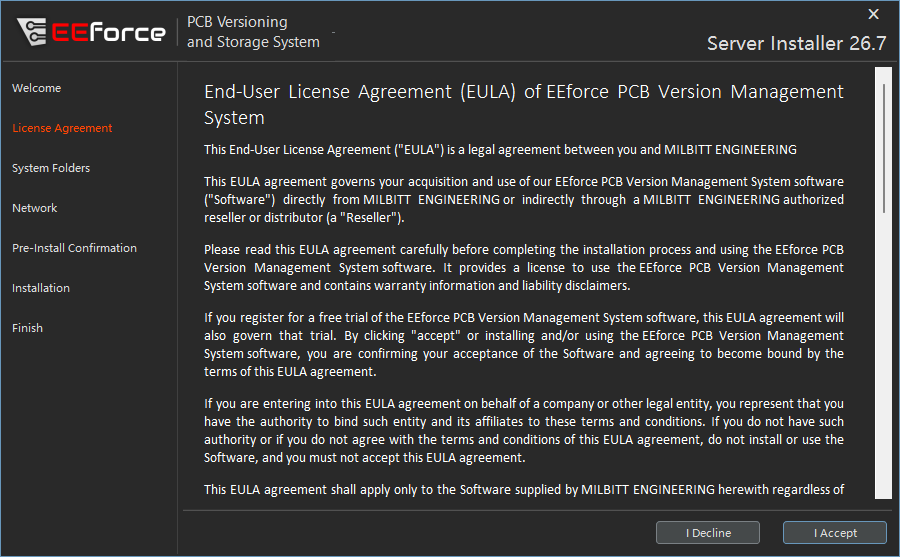
1. Accept the licence agreement
Read the End User License Agreement and click I Agree to continue.
2. Choose the folders
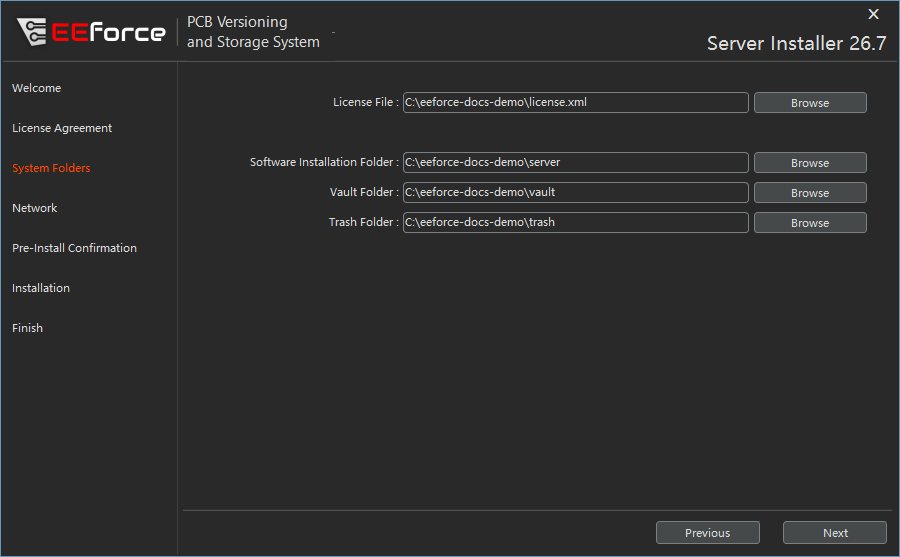
| Field | Purpose | Notes |
|---|---|---|
| Software Installation Folder | Where the server software is installed | Local disk; around 150 MB |
| Vault Folder | Stores all designs and versions | 20 GB+ to start; back it up regularly |
| Trash Folder | Holds deleted designs before they are removed for good | Clean it up from time to time |
| License File | The licence file for this server | From your reseller — see Licensing |
Click Next when all fields are filled in.
3. Set up the network
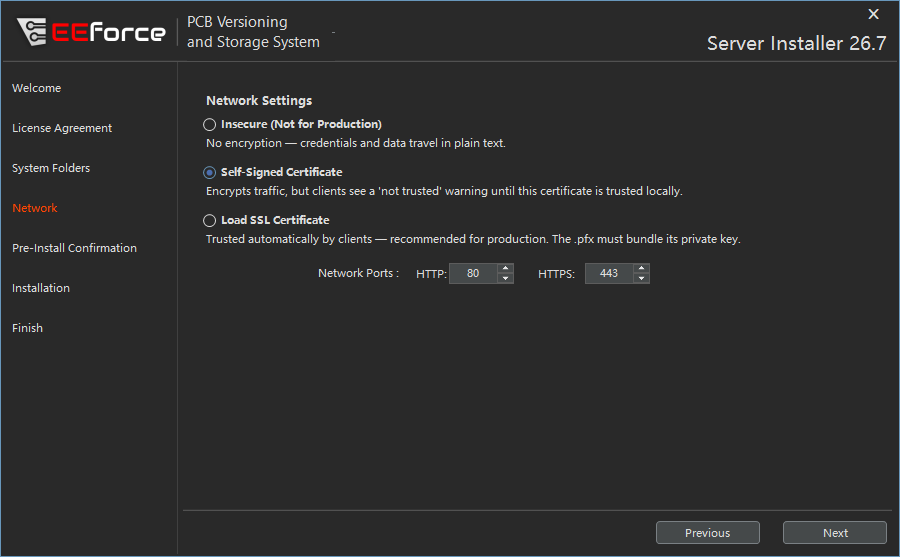
Set the HTTP port — and the HTTPS port, when you use a certificate — then choose how the server provides HTTPS:
| Mode | What it means |
|---|---|
| Insecure (Not for Production) | No encryption — credentials and data travel in plain text. Only for trying things out. |
| Self-Signed Certificate | Traffic is encrypted, but users see a "not trusted" warning until the certificate is trusted on their machines. |
| Load SSL Certificate | Your own certificate. Clients trust it automatically — recommended for production. The .pfx must bundle its private key. |
The certificate (or a generated self-signed one) is kept in the installation folder's ssl folder and is kept as it is when you upgrade later.
4. Confirm
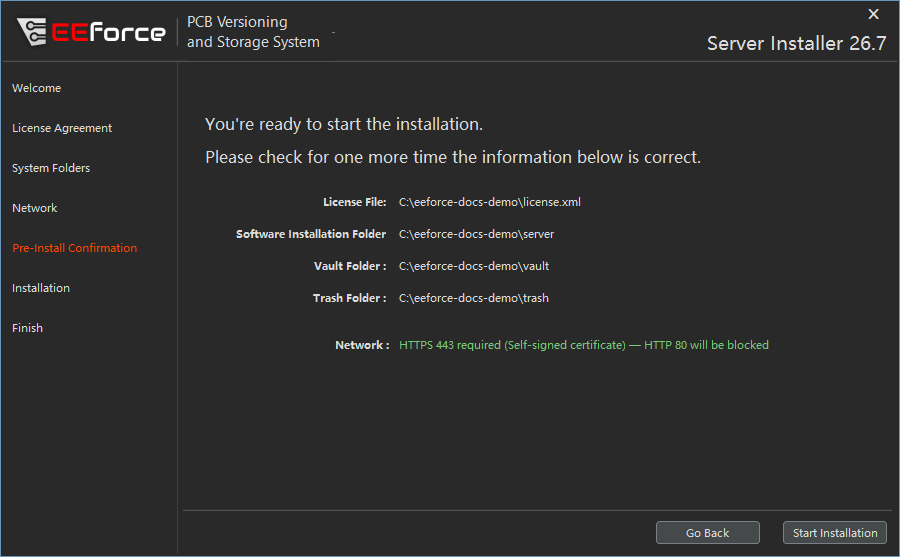
The confirmation page summarises your choices — including the resolved HTTPS mode and ports — and warns if a choice needs attention. Click Start Installation to begin for real.
5. Let it install
The installer creates the folders, gives the server's application pool access to them, installs the IIS role if it isn't there yet, deploys EEforce and configures HTTPS. This can take a few minutes on a first install. A progress page shows where it is.
6. Finish
The last page shows the server address your users will need — click Copy to clipboard to copy it. Open Log File shows what happened if something looks wrong; then click Finish Installation.
Hand the server address out to your users (they enter it during client installation) — for example http://eeforce.kestrel.local.
Unattended installation
Both installers can run without any windows, which is handy for deployment scripts. Run the installer with /silent and the settings as parameters: an upgrade uses the settings from the previous installation unless you override them.
Install.exe /silent [/installdir <path>] [/vaultdir <path>] [/trashdir <path>] [/license <path>] [/verbose]- The licence file must exist (from the previous installation,
/license, orlicense.xmlnext to the installer). - Administrator rights are required.
- The client installer accepts
/silent /installdir <path> /serverurl <url>in the same way. /helpprints the full reference, and every silent run writes aninstall_*_log.txtnext to the executable.
Starting and stopping the server
The EEforce server runs as an IIS (Internet Information Services) application pool.
Using IIS Manager: press Win + R, type inetmgr and press Enter; open Application Pools, find EEForceApplicationPool and start or stop it.
Using PowerShell:
powershell
# Start the server
Start-WebAppPool -Name "EEForceApplicationPool"

# Stop the server
Stop-WebAppPool -Name "EEForceApplicationPool"
You can also restart the server from the web admin — see Restarting the server.
WARNING
While the server is stopped, nobody can sign in or check work in. Make sure everyone has finished before you stop it.
After installation
- Open the server address in a browser. The start page links to the Admin Panel, the client download and EEforce 365.
- Administration starts in the web admin: Web Admin Interface. Create your users and groups there, set up LDAP, SSO or SCIM provisioning if you use them, and point the vault at your storage of choice.
- Server settings live in
config\config.jsonunder the installation folder. Use the web admin's Settings pages to change them — the file is maintained by the server.
Changing the certificate or ports later
Run the installer again and pick the new options on the Network page; your folders and data are left as they are. The server address on the last page reflects the new setup.
Troubleshooting
| Symptom | Possible cause | Resolution |
|---|---|---|
| Clients cannot connect | Firewall blocking a port | Open the HTTP/HTTPS ports you chose on the Network page in Windows Firewall |
| "Access denied" on vault operations | Folder permissions | Give IIS_APPPOOL\EEForceApplicationPool full control on the vault and trash folders — see Permissions for moved folders |
| Server won't start after moving folders | Wrong path in the storage settings | Check the folder exists and is reachable, then correct the setting in the web admin |
| Users see a "not trusted" certificate warning | Self-signed certificate | Trust the certificate on the user machines, or re-run the installer with your company certificate |
| Slow check-in and check-out | Vault on slow or network storage | Move the vault to local NVMe/SSD or improve the network path |