

Appearance
Managing Versions
Every check-in adds a version to a design, and EEforce keeps them all. This page covers the version actions: locking, tagging and pruning, which need the Manager role on the project, and copying a version into a new design. To preview, check out or download a specific version, see Checking Out & Checking In and Browsing & Downloading Files.
The version menu
Right-click a version (or select it and open More on the toolbar):
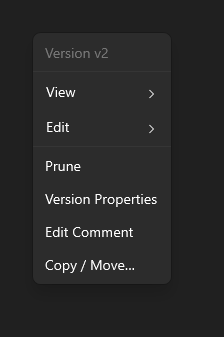
| Item | What it does |
|---|---|
| View / Edit | Opens or checks out this version. Checking out an older version starts a branch. See Checking Out & Checking In. |
| Prune | Removes the version's data from the server (see below). |
| Version Properties | Edits the comment, locks the version or gives it a tag. |
| Edit Comment | Changes the version's check-in comment. |
| Copy / Move… | Starts a new design from this version (see below). |
Prune, Version Properties and Edit Comment need the Manager role, and the design must be checked in. Copy / Move… is greyed out for a pruned version, whose files are no longer there to copy.
Locking and tagging a version
Open Version Properties to see a version's details:
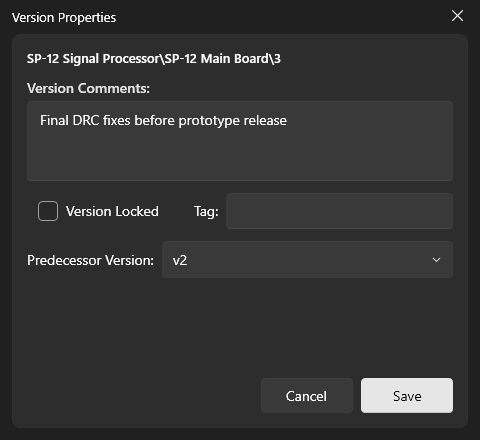
- Version Comments — the check-in comment. You can correct it here.
- Version Locked — protects the version from being pruned. A locked version can still be checked out; the new work simply branches off it.
- Tag — a short label, such as
PrototypeorRelease A, that shows as a badge in the version list. - Predecessor Version — the version this one was based on.
Click Save to keep your changes.
Pruning a version
Pruning frees space on the server by removing an old version's data. Use it for versions nobody will need again.
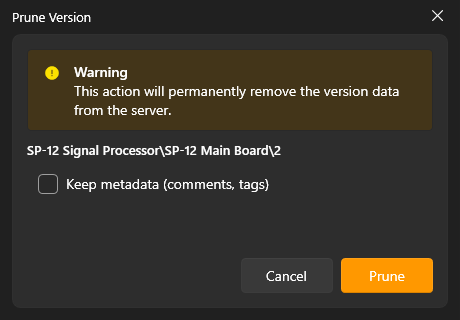
Tick Keep metadata (comments, tags) to keep the version in the history with its comment and tag, marked as pruned. A pruned version can still be previewed, but it can no longer be checked out or downloaded. Without the tick, the version disappears from the history altogether. You can't prune a locked version or a design's only version.
WARNING
For you and your team, pruning is final: the version's files are gone from the project. They go to the server's trash, though, so an administrator can still restore them until the trash is emptied — see Storage Assistant.
Administrators can also prune many versions at once, across a whole project, and see how much space each version takes — see Storage Assistant.
Starting a new design from a version
Copy / Move… on a version turns it into a new, separate design — for example to start a variant of a board from a proven revision.
- Right-click the version → Copy / Move…. The dialog opens with Copy chosen and Selected version ticked.
- Under To, pick the project or folder for the new design. It can be the same project.
- Check the Name and click Copy.
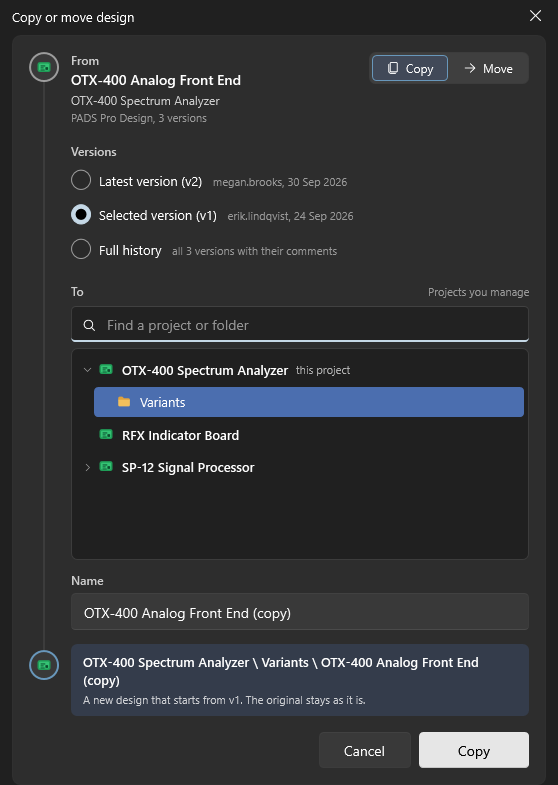
The new design starts at v0 with the content and comment of the version you picked. The original design isn't changed.
You need any role on the design's project and the Manager role on the project the new design goes into. The same dialog can also copy the whole history, or move the design — see Copying or moving a design.
What's next
- Designs & Versions — the boards inside a project
- Checking Out & Checking In — edit a design and save a version