

Appearance
Storage
Everything your team checks in lives in the server's vault, with deleted items parked in its trash until you remove them for good. By default both are folders on the server's own disks, but EEforce can just as well keep them in S3-compatible cloud storage or Azure Blob Storage.
Storage is configured per server, in the web admin under Settings → Storage. Changing storage or its settings requires a server restart, and the page will tell you when one is needed.
To see how much space the vault and the trash take, prune old versions, or restore something from the trash, use the Storage Assistant.
Licensed feature
The cloud back ends are licensed features: if your licence doesn't include S3-compatible storage or Azure Blob Storage, the option is shown locked. Contact your reseller to add it.
Choosing where the vault lives
| Storage type | Use it for |
|---|---|
| Local Filesystem | The default. Fast local disks (NVMe/SSD) give the best check-in and check-out performance. |
| S3-Compatible Storage | AWS S3 or any S3-compatible service — for example object storage behind a gateway, or a cloud bucket your company already backs up. |
| Azure Blob Storage | Azure Blob containers, for teams standardised on Azure. |
Network shares
A shared folder on the LAN works as a local filesystem location, but check-ins and check-outs will be slower than on local disks. If you use one, make sure the server's application pool identity (see Permissions for moved folders) has full read/write access to it.
Local folders
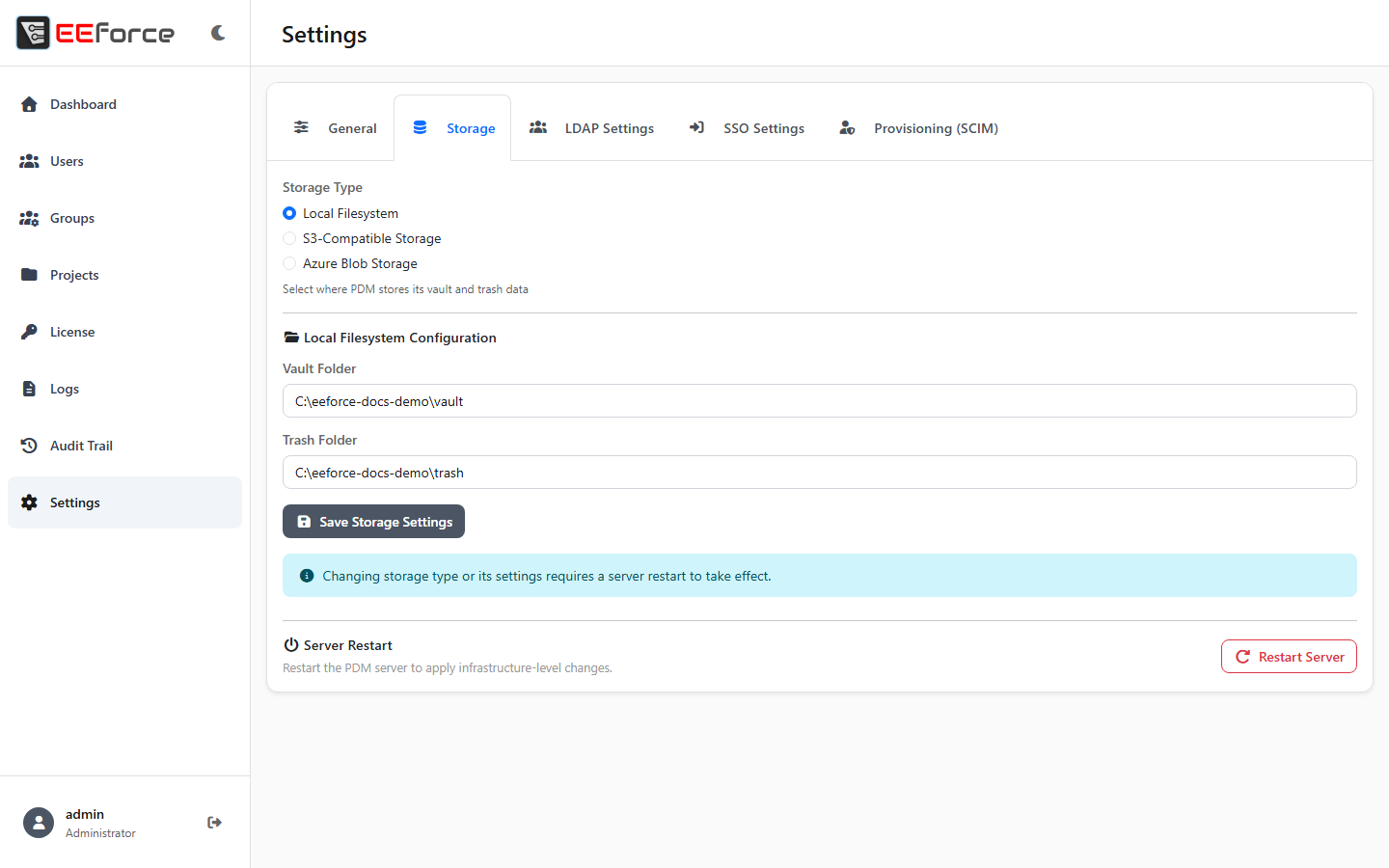
- Open Settings → Storage.
- Make sure Local Filesystem is selected.
- Set the Vault Folder and Trash Folder.
- Click Save Storage Settings, then restart the server when asked.
The installer already creates sensible folders and grants the server's application pool access to them, so you only need to change these if you relocate storage.
Moving the vault to another folder
- Stop the server (see Setting Up the Server).
- Copy the vault folder — and the trash folder, if you use one — to the new location.
- Point Vault Folder / Trash Folder at the new paths and save.
- Set the folder permissions (see below) if the new location needs them.
- Start the server and check that a project opens.
Permissions for moved folders
The server runs as the IIS application pool identity IIS_APPPOOL\EEForceApplicationPool. When the installer creates the vault and trash folders it grants that identity access itself; if you move folders afterwards, grant it Full Control on the new locations:
- Right-click the folder → Properties → Security → Edit…
- Add
IIS_APPPOOL\EEForceApplicationPooland give it Full Control.
S3-compatible storage
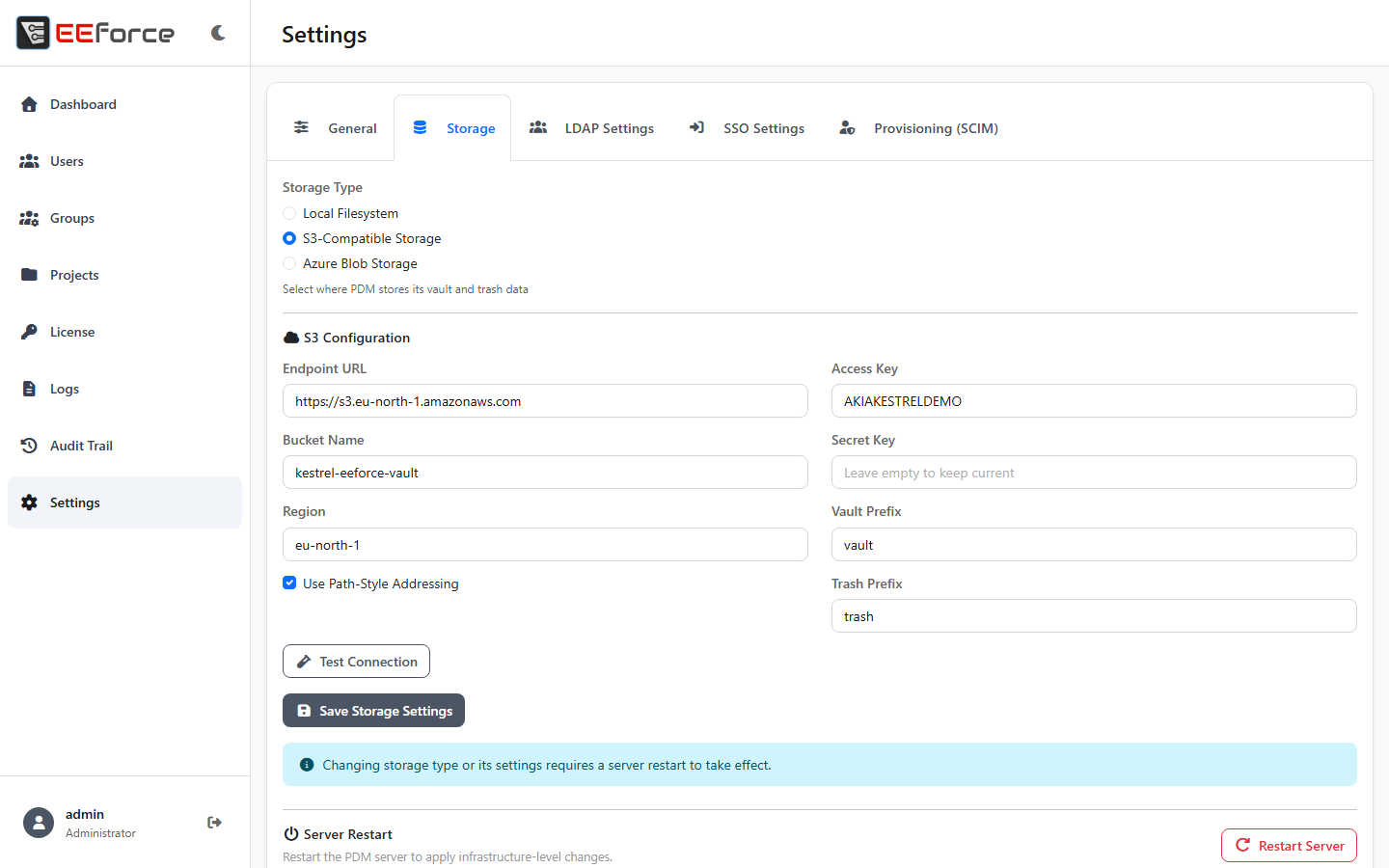
| Field | Notes |
|---|---|
| Endpoint URL | The service endpoint, e.g. https://s3.eu-north-1.amazonaws.com |
| Bucket Name | The bucket to use |
| Region | The region the bucket lives in |
| Use Path-Style Addressing | Turn on for services that don't support virtual-hosted-style bucket addresses |
| Access Key / Secret Key | The credentials the server should use. A saved secret is never shown back — leave the box empty to keep the current one |
| Vault Prefix / Trash Prefix | The key prefixes (folders) inside the bucket for the vault and the trash |
Click Test Connection to prove that the endpoint, credentials and bucket work together, then Save Storage Settings.
TIP
Give EEforce its own access key scoped to just this bucket. The keys are stored encrypted on the server.
Azure Blob Storage
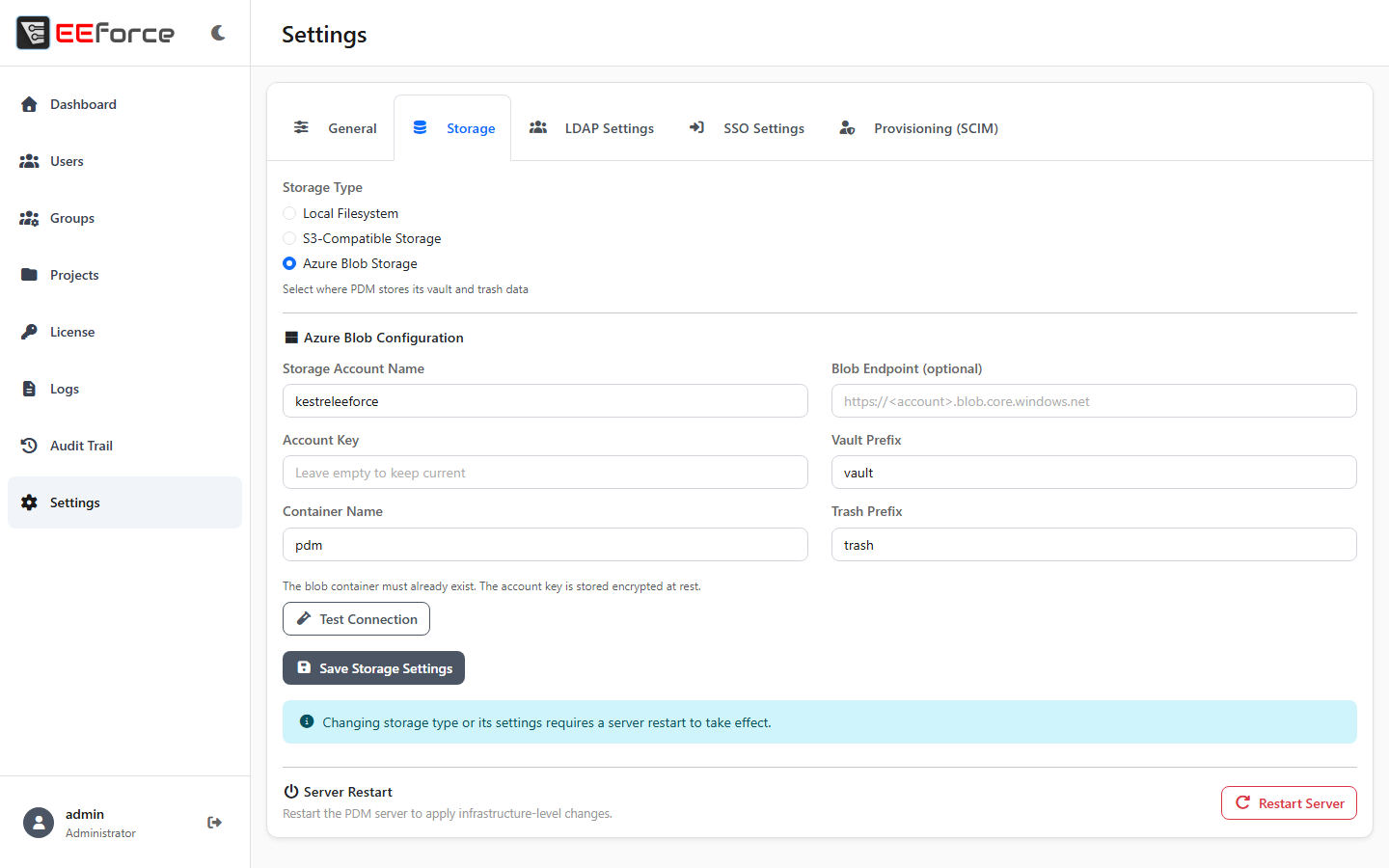
| Field | Notes |
|---|---|
| Storage Account Name | The Azure storage account |
| Account Key | Its access key. A saved key is never shown back — leave the box empty to keep the current one |
| Container Name | The blob container to use. It must already exist |
| Blob Endpoint | Optional — only needed for non-standard endpoints |
| Vault Prefix / Trash Prefix | The blob prefixes for the vault and the trash |
Click Test Connection, then Save Storage Settings.
INFO
The account key is stored encrypted at rest on the server.
Troubleshooting
| Symptom | Things to check |
|---|---|
| Test Connection fails (S3) | Endpoint and region spelling, that the bucket exists, and the key's permissions. Some services need path-style addressing. |
| Test Connection fails (Azure) | The container must exist before you save; check the account name and key. |
| "Licensed feature" lock | Your licence doesn't include this back end — contact your reseller. |
| Everyone sees an empty vault after a change | You are pointing at storage that doesn't hold your data yet. Move the vault contents to the new back end first, or point the setting back. |
| Check-ins and check-outs became slow | The storage moved to a slower device or a network share — see the warning above. |