

Appearance
Working Remotely
Sometimes you need to work on a design somewhere the server can't be reached — a remote site, a flight, or a customer location with no VPN. EEforce lets you take a design with you and bring your changes back later.
The idea
- Export the design to a single package file. This checks it out and locks it for you, just like a normal check-out.
- Work offline on the package with Xpedition or PADS Professional.
- Import the updated package back into EEforce. This saves a new version and unlocks the design.
While the design is exported, it stays checked out to you. Others can view it but can't edit it — exactly as if you'd checked it out at your desk.
Taking a design with you
You need edit rights, and the design must be checked in.
- Select the project, then the design.
- Right-click the design → Remote Working → Export.
- Choose where to save the package file, and save.
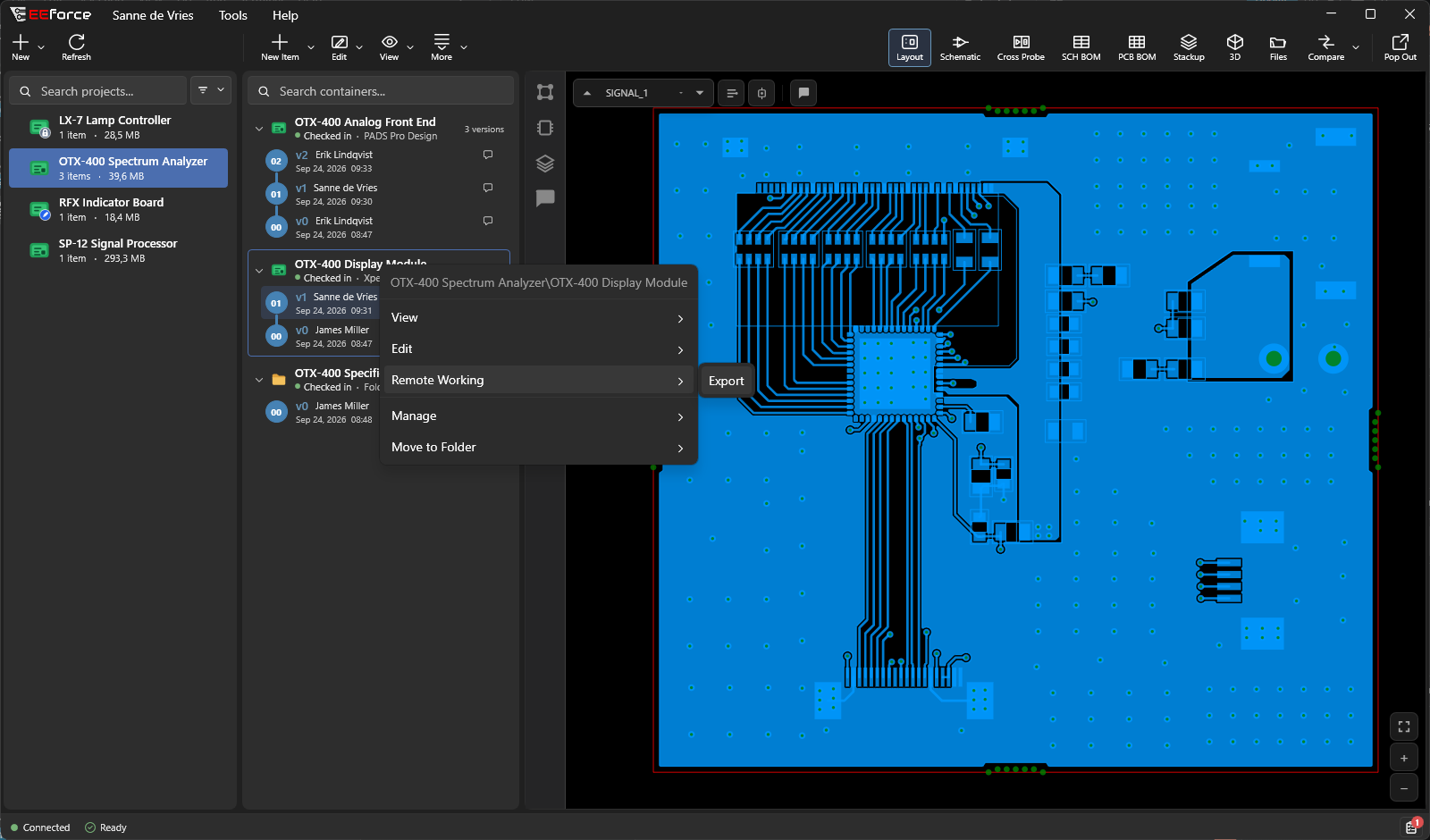
The package is a single, self-contained file — copy it to a USB drive, put it on a laptop, or send it however you need. The design now shows as Checked out on the server.
Working on it away from the server
Open and edit the package's design files with Xpedition or PADS Professional as usual. Keep everything in the same folder layout — don't rename or move files around inside it, or EEforce won't recognise it when you bring it back.
Bringing your changes back
You must have the design checked out (from the export step).
- Select the checked-out design.
- Right-click → Remote Working → Import.
- Point EEforce at your updated files. EEforce asks for an Import Comment — it becomes the check-in comment of the new version, so say what you changed.
EEforce uploads your work as a new version and unlocks the design. You can watch the progress along the bottom of the window.
Changed your mind?
If you don't want to keep your remote changes, right-click the design → Cancel Checkout. The lock is released and no new version is created. See Checking Out & Checking In.
Tips
| Situation | Suggestion |
|---|---|
| Slow connection when importing | Switch Chunked upload on in Settings — it's off by default and helps large uploads survive a flaky link. |
| Several people working remotely | Give each person a different design — never the same one. |
| Away for a while | Let your team know which design you have, since it stays locked. |
| Lost the export file | Cancel the check-out on the server and export again. |