

Appearance
Web Admin Interface
The EEforce web admin is the browser-based administration console for your EEforce server. Everything an IT administrator needs — user accounts, groups, project access, storage, licences, logs and server settings — lives here, and there is nothing to install: any modern browser will do.
Opening the web admin
Browse to your server address followed by /admin — for example http://eeforce.kestrel.local/admin. The server's start page also links to it (Open Admin Panel).
Signing in
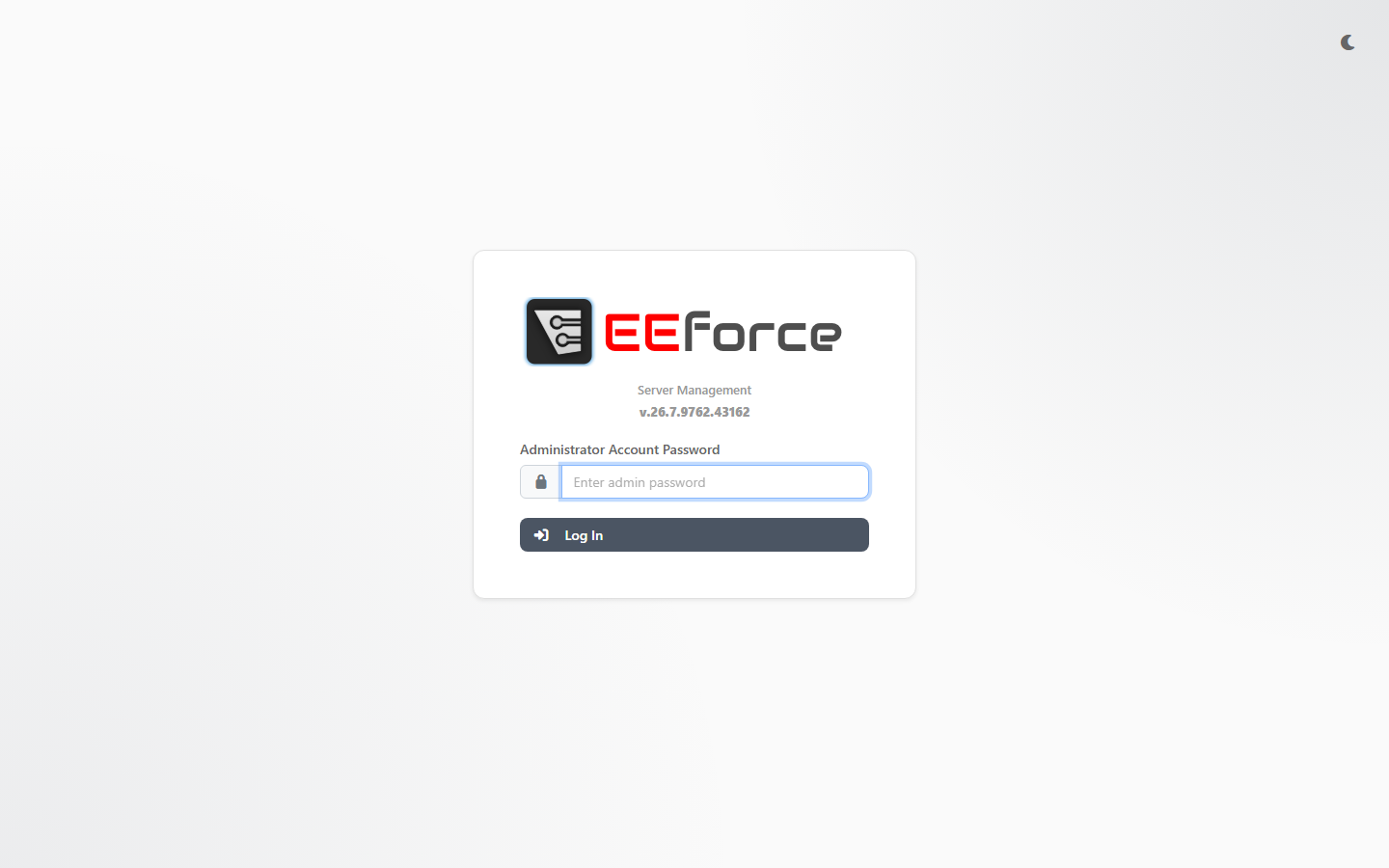
The sign-in page asks for the administrator password only. It works with the server's built-in administrator account and nothing else — being a member of the Project Administrators group in EEforce does not open the web admin. If you don't know the password, ask whoever installed the server; you can change it on the Users page once you are in.
A few things you'll notice:
- Repeated failed sign-in attempts are slowed down automatically.
- A session ends after a period without activity — you'll see "Your session has expired. Please log in again." and return to the sign-in page.
- The theme toggle at the bottom of the sidebar switches the console between light and dark.
- Log out with the icon in the sidebar footer.
Dashboard
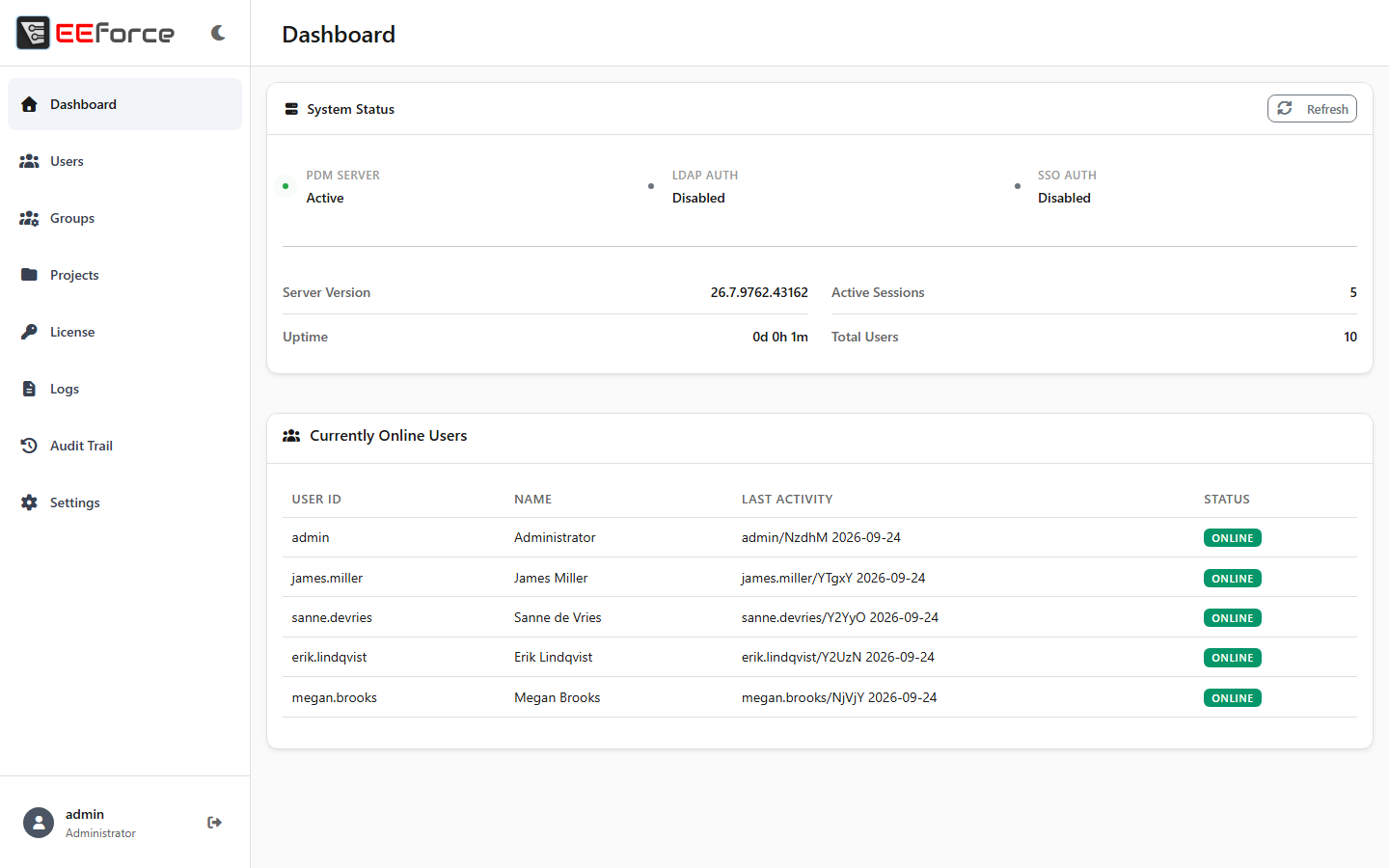
The Dashboard is a live overview of the server:
- System Status — whether the PDM server itself, LDAP authentication and SSO authentication are up, together with the server version and uptime
- Active Sessions and Total Users
- Currently Online Users — who is signed in right now, with their last activity
Click Refresh to update the page.
Users
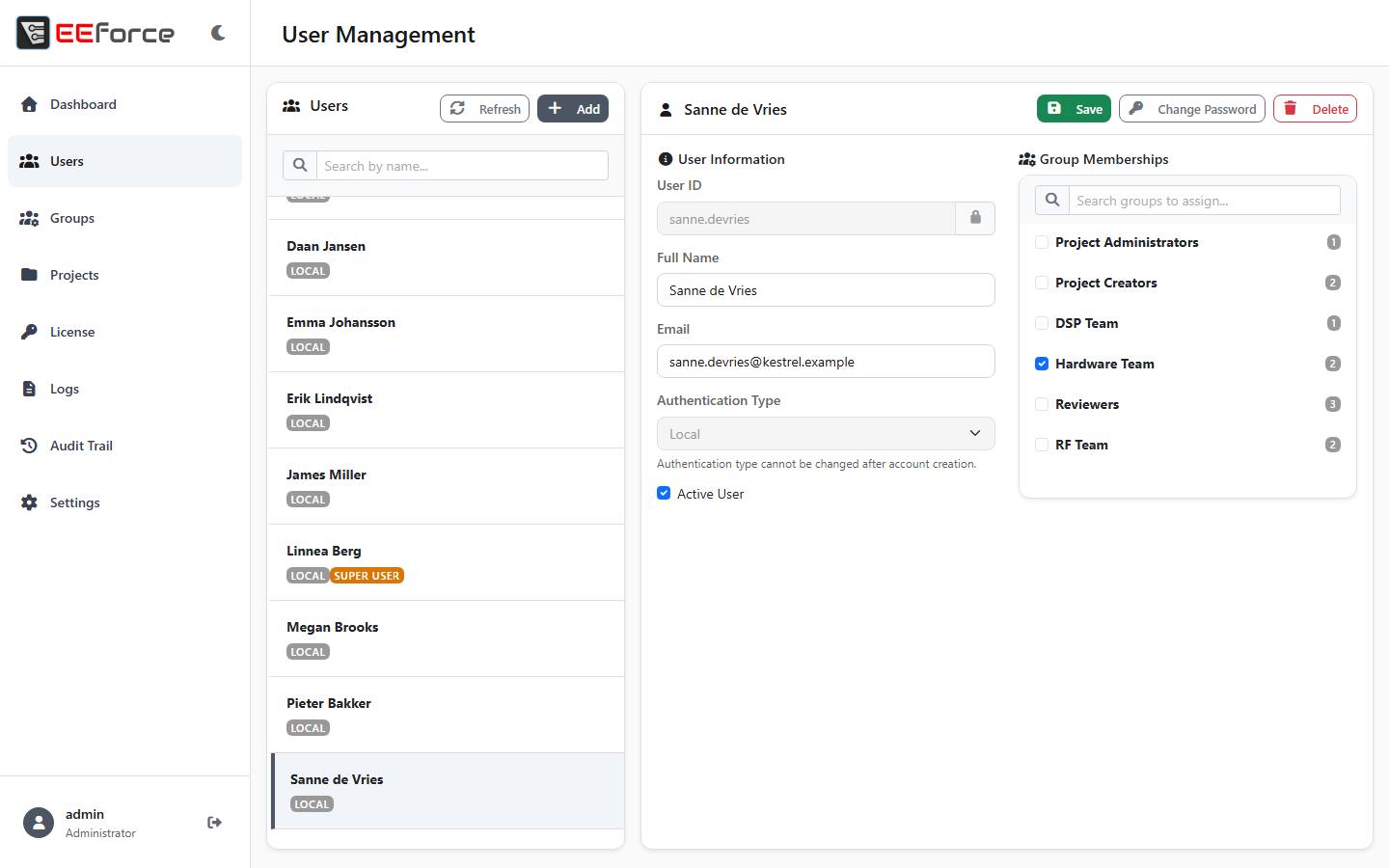
The Users page lists every EEforce account. Use the search box to narrow the list down; each account is tagged with how it signs in (Local, LDAP or SSO) and whether it is Inactive or an administrator account.
Select an account to edit it:
| Field | Notes |
|---|---|
| User ID | Locked — the ID never changes |
| Full Name, Email | Free text; an LDAP or SSO account's name and e-mail come from the directory |
| Authentication Type | Local, LDAP or SSO (Managed Externally) — cannot be changed after the account is created |
| Active User | Untick to block sign-in while keeping the account |
| Group Memberships | Tick the groups this account belongs to |
Save, Change Password and Delete act on the selected account.
To create an account, click Add:
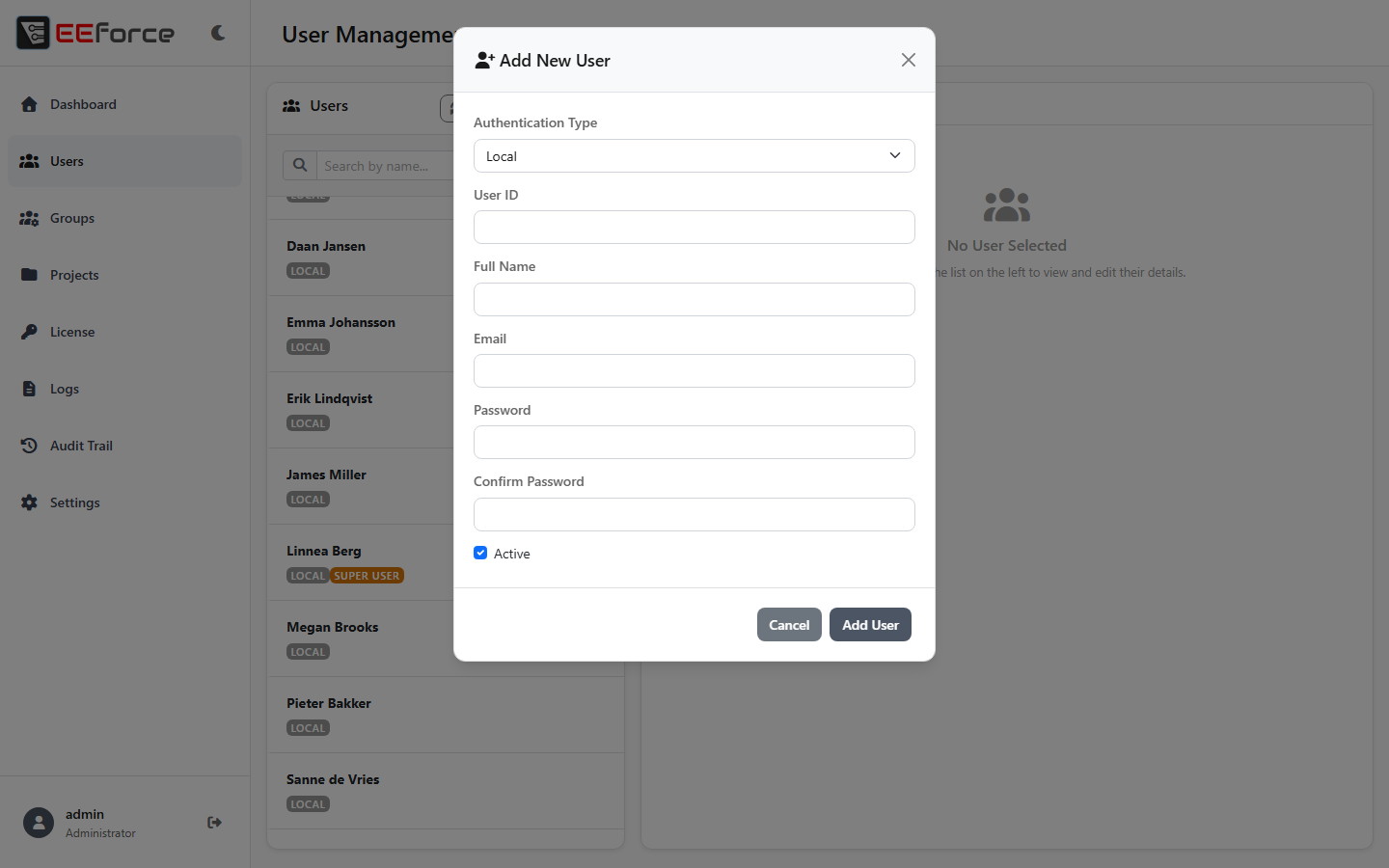
The dialog asks for the Authentication Type (Local or LDAP only), User ID, Full Name, Email, a password and, for LDAP, whether the account is active from the start.
LDAP and SSO accounts
An LDAP account's password always lives in Active Directory, and an SSO account has no EEforce password at all — but you can still set group memberships here for both. SSO accounts are not created on this page: they appear automatically on a user's first single sign-on, or through SCIM provisioning.
Groups
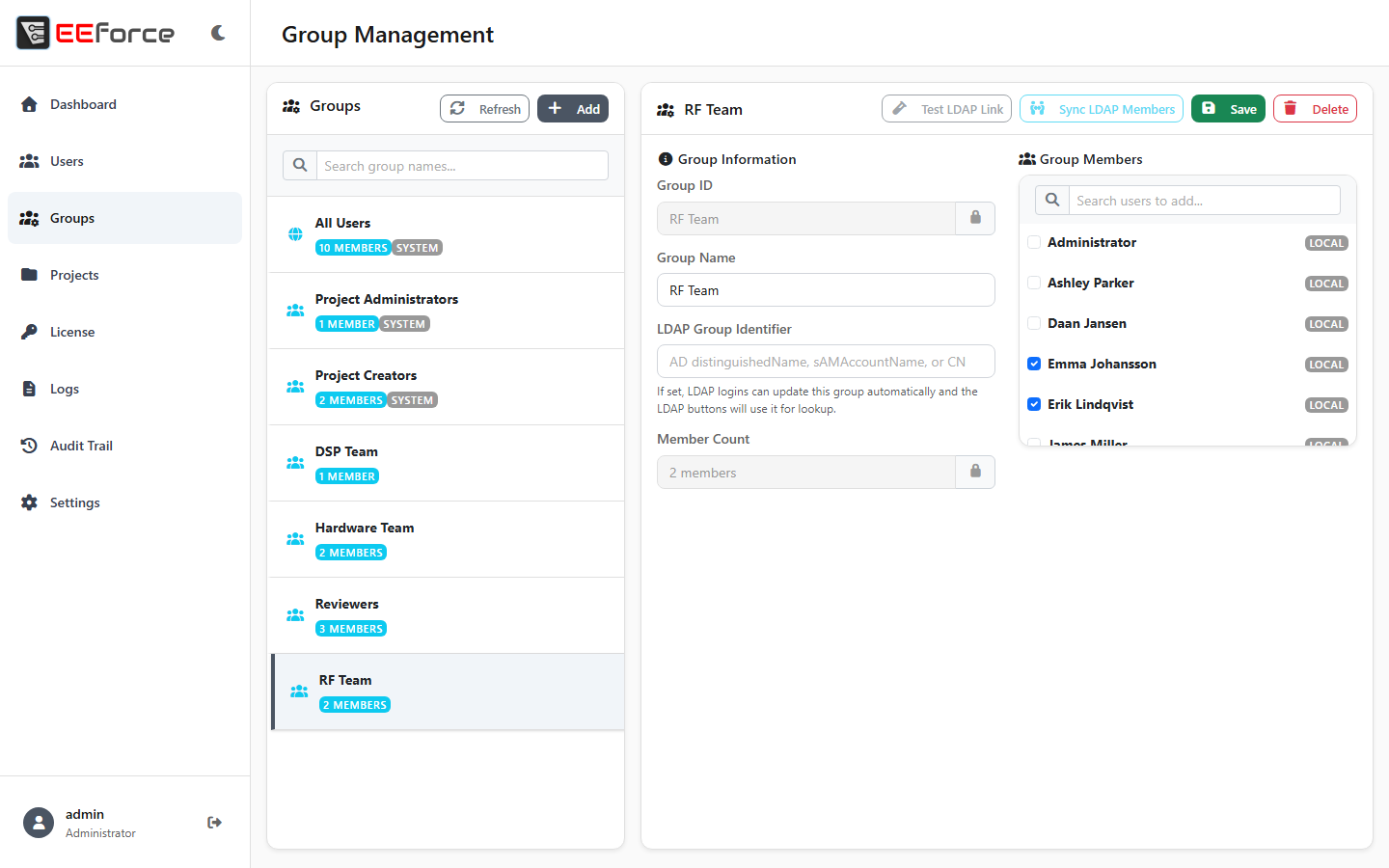
Groups bundle people together so you can give them project roles in one go. Select a group to see its details:
| Field | Notes |
|---|---|
| Group ID | Locked — the ID never changes |
| Group Name | The name shown everywhere in EEforce |
| LDAP Group Identifier | Optional — links this group to a group in Active Directory, see LDAP / Active Directory |
| Member Count / Group Members | View and change who belongs to the group |
Test LDAP Link and Sync LDAP Members appear next to the identifier once it is set; Save and Delete work as usual.
Built-in groups
| Group | Purpose |
|---|---|
| All Users | Every account, kept up to date automatically |
| Project Administrators | Members get Manager access to every project |
| Project Creators | Members can create new projects |
These groups are tagged System and cannot be deleted.
Projects
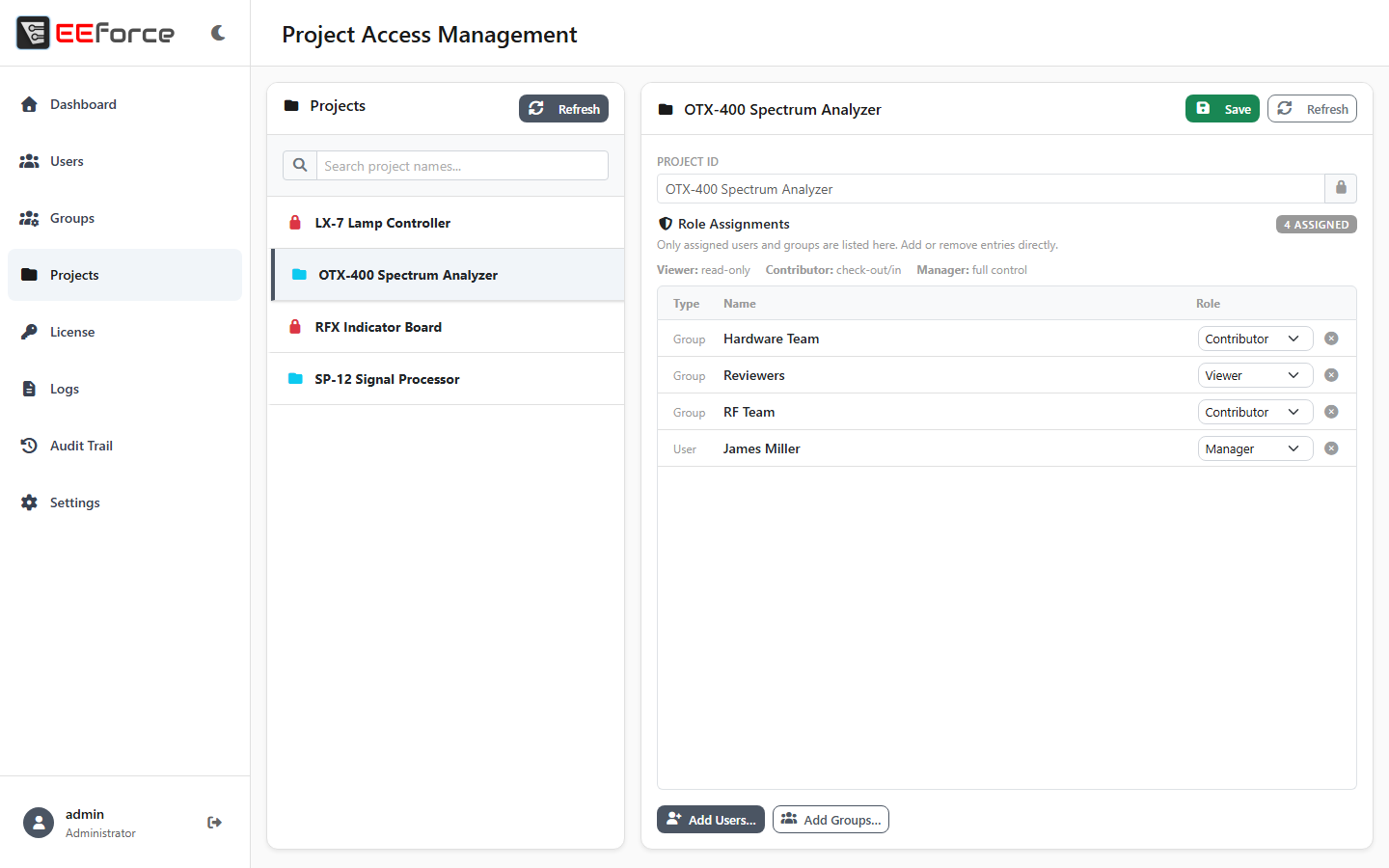
Projects lists your projects and their role assignments. Select a project to see who can do what:
| Element | Notes |
|---|---|
| Role Assignments table | One row per person or group: Type (User/Group), Name, Role — with Remove to take the row away |
| Add Users… / Add Groups… | Open a picker with a filter box; tick the people or groups to add |
| Save | Applies your changes |
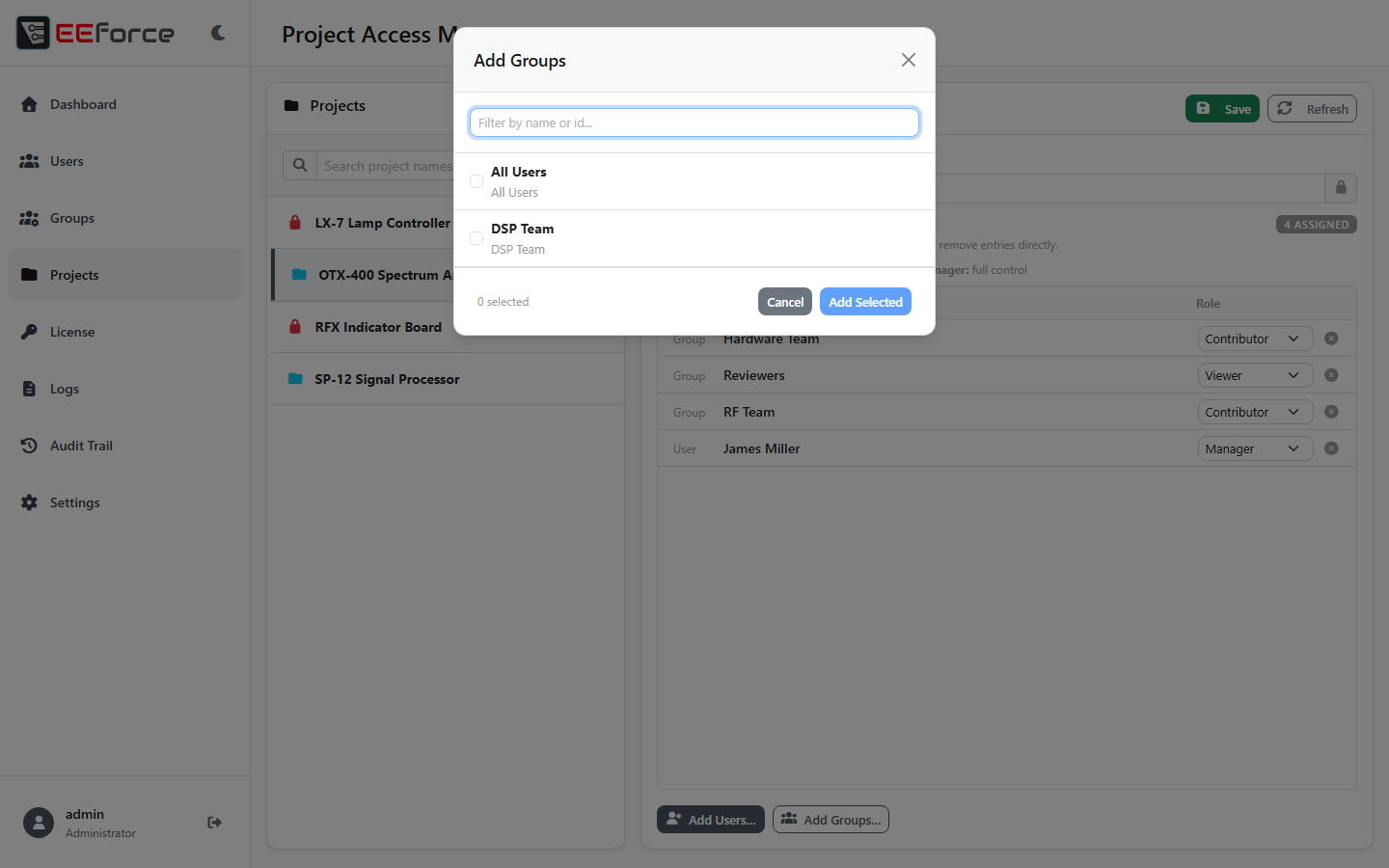
The roles are Viewer (read-only, can comment), Contributor (can check designs out and in) and Manager (full control). A project with a design checked out is marked with a lock icon in the list.
Creating and deleting projects
The web admin edits access to existing projects only. Creating, renaming and deleting projects stays in the desktop app — see Working with Projects. A project's own Managers can also change its access in EEforce 365 — see Managing Access.
Storage
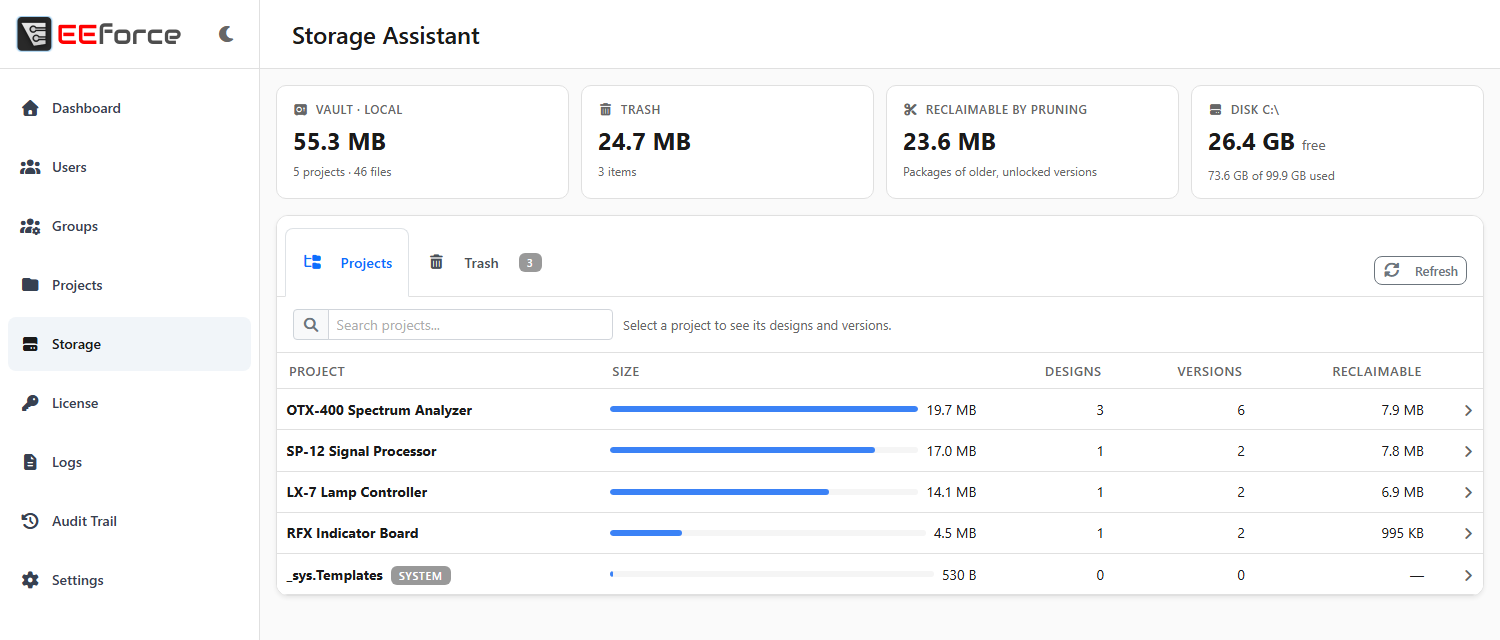
The Storage page is the Storage Assistant. It shows how much space the vault and the trash take, project by project and down to each version; prunes old versions in bulk; and lists everything that was deleted, pruned or moved away, so you can restore it or delete it for good. See Storage Assistant.
Where the vault and the trash live is a setting, under Settings → Storage.
License
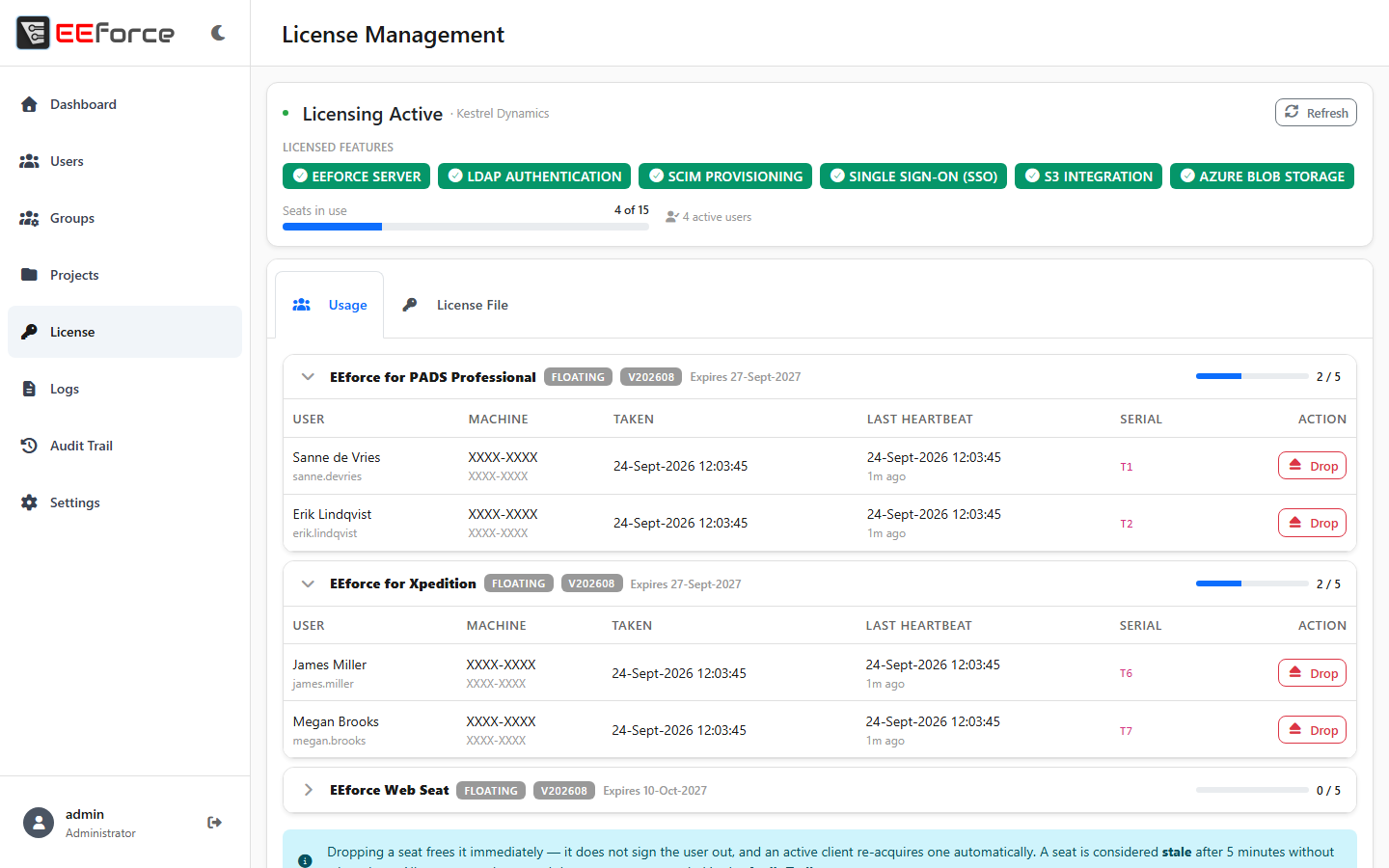
The License page shows the licence that is active on this server: the licensee, the Licensed Features your company has bought and how many seats are in use. It has two tabs:
Usage — one row per seat that is held right now, with the user, machine, when the seat was taken, its last heartbeat and the licence serial number. Use the Drop button to free a seat that was left behind — see Managing seats day to day for what that does.
License File — everything in the current licence file: licensee, Site ID, issue date, licence ID, hardware IDs and the full Licensed Seats table. Update License File uploads a renewed licence — it takes effect immediately, without restarting the server.
Read Licensing for how seats, renewals and expiry work.
Logs
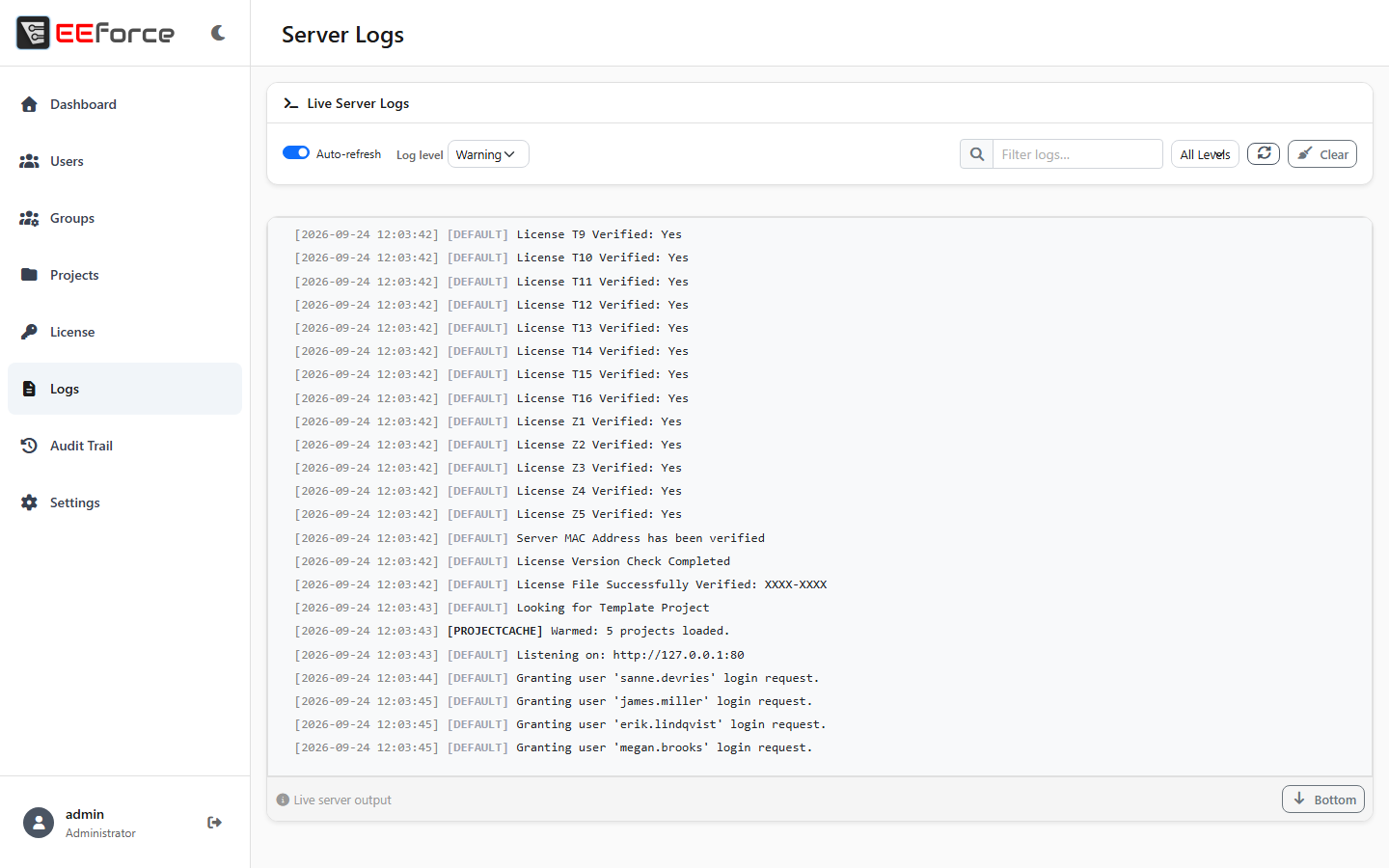
Live Server Logs shows the server's own log stream — the place to look when something isn't working:
- Auto-refresh and Refresh keep the view current; Clear empties it.
- The Log level selector changes how much detail the server writes. Raise it while investigating and lower it again afterwards; at the most detailed level every request is logged.
- Filter by free text or by level, and use Bottom to jump to the newest lines.
The logs are for troubleshooting. To find out who did what, use the Audit Trail.
Audit Trail
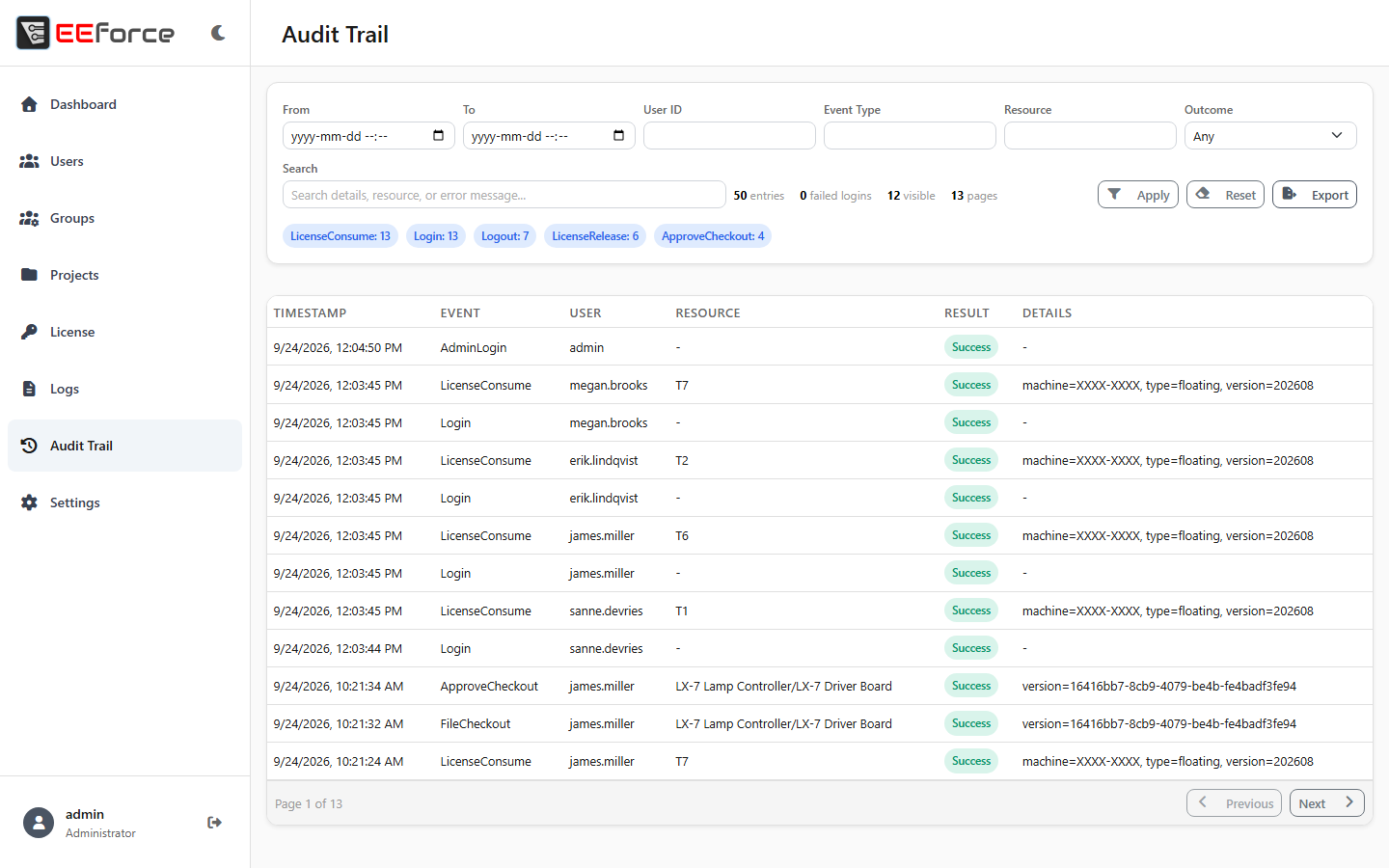
Every change made through EEforce is recorded here: sign-ins, check-outs and check-ins, designs copied or moved between projects, versions pruned, items restored from or deleted in the trash, account and permission changes, licence uploads and more. Filter by From / To dates, User ID, Event Type, Resource, Outcome (Success or Failed) or free text, then click Apply; Reset clears the filter.
The table lists Timestamp, Event, User, Resource, Result and Details, with paging underneath. Export downloads the filtered entries for a report or a ticket.
Settings
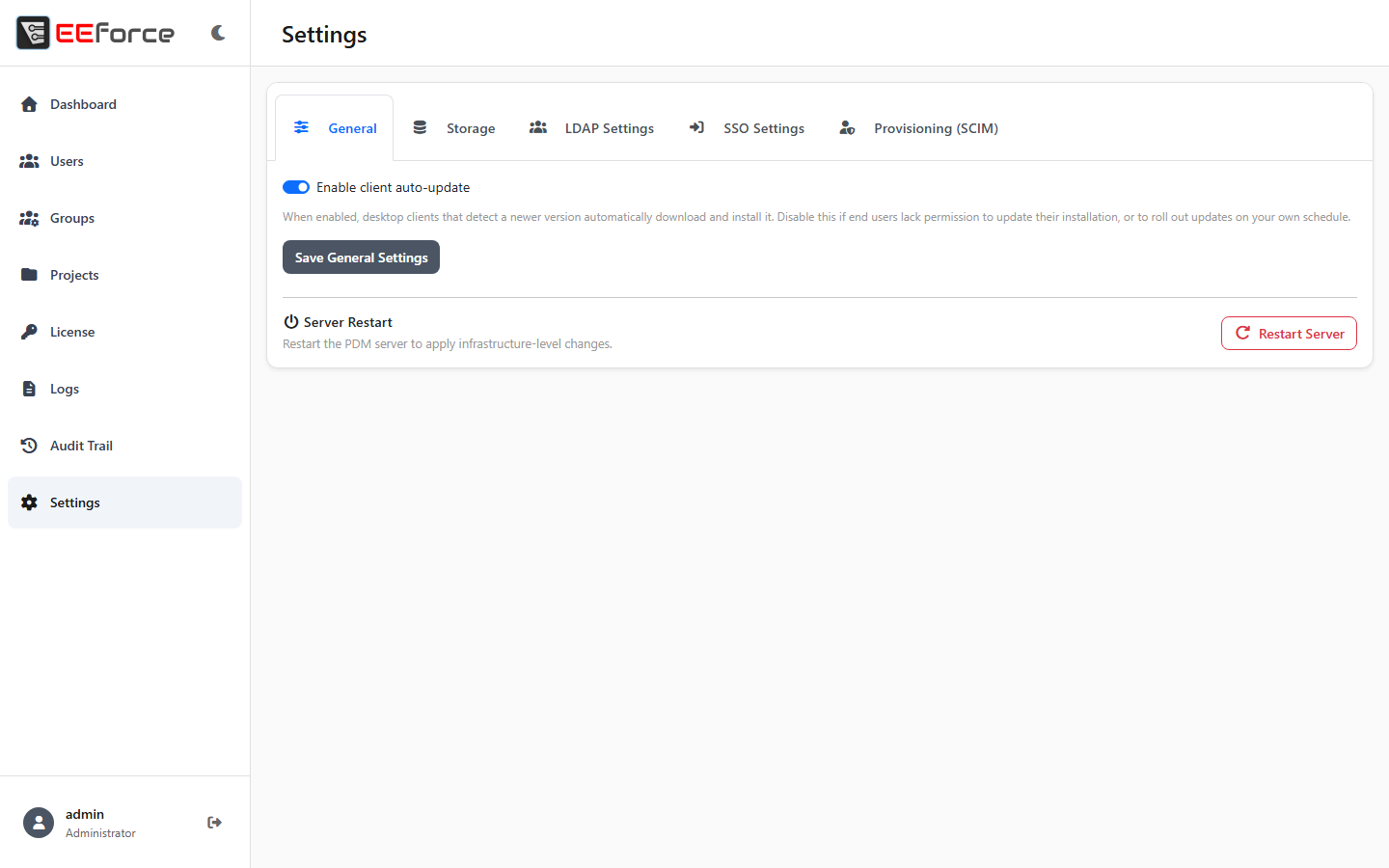
Server-wide settings are grouped into tabs:
| Tab | What it holds |
|---|---|
| General | Enable client auto-update — when on, desktop apps that find a newer version download and install it at start-up. Turn it off if your users can't install software themselves, or to roll updates out on your own schedule. |
| Storage | Where the vault and its trash live: local folders, S3-compatible storage or Azure Blob. See Storage. What they hold is on the Storage page. |
| LDAP Settings | The connection to Active Directory. See LDAP / Active Directory. |
| SSO Settings | Single sign-on through your identity provider. See Single Sign-On (SSO). |
| Provisioning (SCIM) | Let your identity provider manage user accounts. See User Provisioning (SCIM). |
Each tab has its own Save button.
Restarting the server
The bottom of every Settings tab has a Server Restart block:

Click Restart Server and confirm. Some settings — storage, for example — tell you a restart is needed when you save them.
WARNING
Restarting disconnects everyone who is signed in. Make sure nobody is in the middle of a check-in before you do it.
Administration from the desktop app
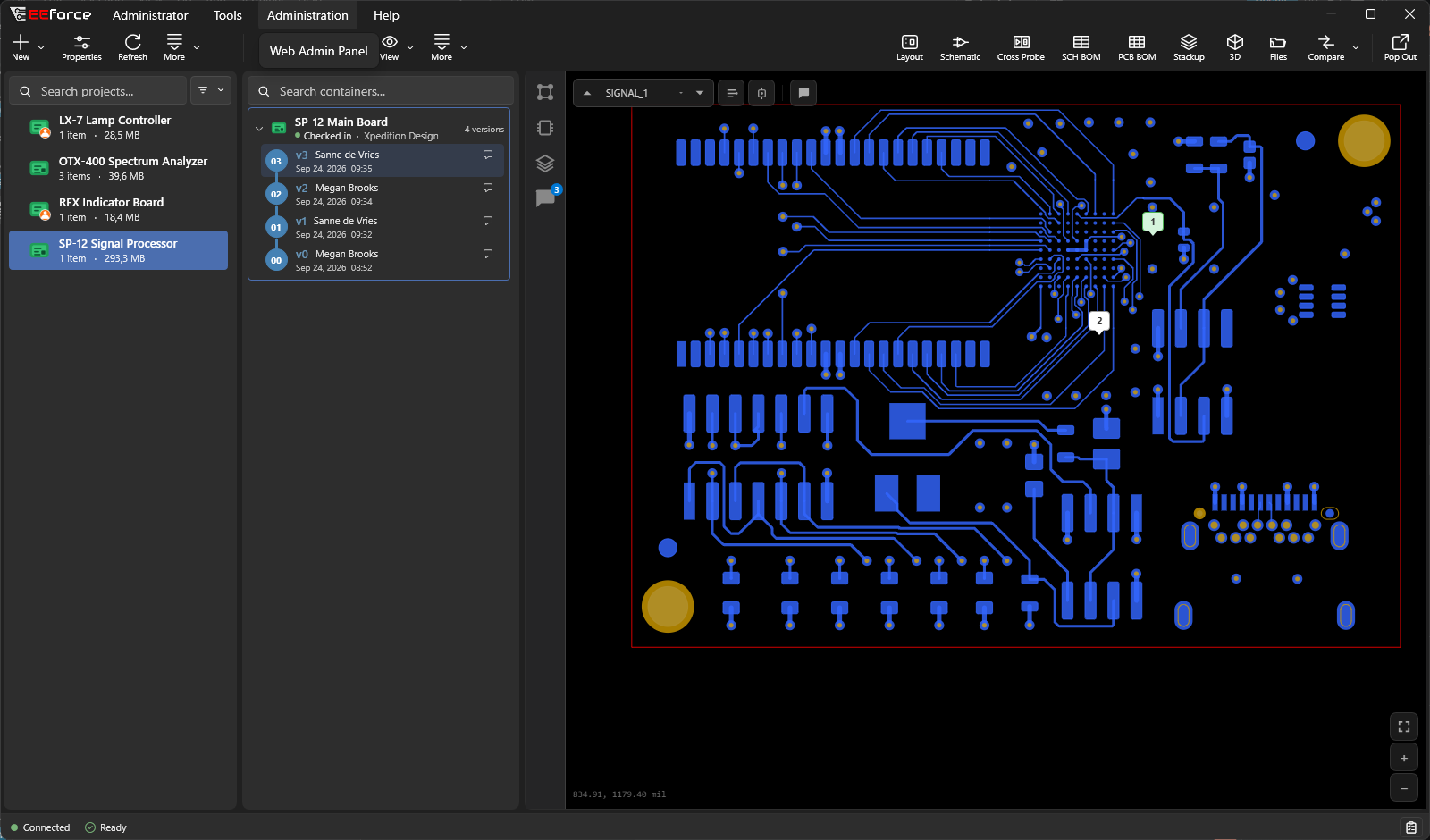
Almost everything an administrator does is in this console. The desktop app keeps only three administrator-only extras, and they appear for the built-in administrator account only:
- Administration → Web Admin Panel opens the console in your browser.
- Right-clicking a design that someone else has checked out offers Super Admin → Cancel Checkout, to release a check-out that was left behind — see Checking Out & Checking In.
- In Settings, Show invisible projects makes projects that are normally hidden from your account appear in the app.
Logging out
Click the logout icon in the sidebar footer. You'll see a short "Logged out." message.