

Appearance
Reviewing Designs Together
Instead of emailing screenshots back and forth, leave notes directly on the design. Drop a comment on the exact spot you mean, mark an area, sketch on top of it, and discuss it right there. Everyone who opens the design sees the conversation, in the EEforce app, in EEforce 365 and in the design tools themselves.
TIP
This is separate from the short check-in comment you type when you check in a version (see Checking Out & Checking In). That one describes what changed. What's covered here is a running discussion that lives on the design itself.
Leaving a comment
- Open a design in Layout, Schematic or Cross Probe.
- Click Add Comment Pin (the speech bubble) in the viewer's toolbar.
- Click the spot you want to talk about, or drag to call out an area. Esc cancels.
- Type your note in the New comment box.
- To make your point visually, drag on the view to draw. Draw is on from the start; the arrow takes the last stroke back.
- Click Post, or press Enter. Shift+Enter starts a new line.
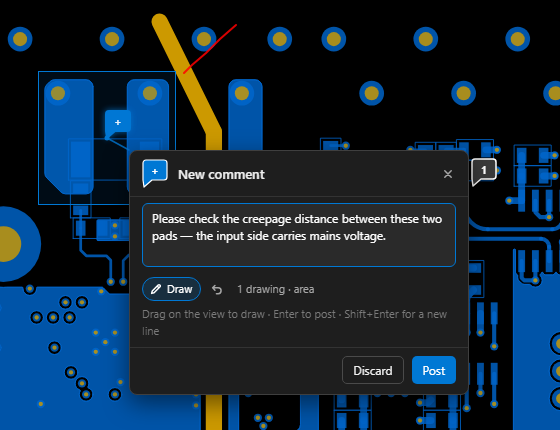
Your comment becomes a numbered marker on that spot, and EEforce keeps a snapshot of what you were looking at: the view, your drawings and the area. The context is never lost, even after the design changes.
3D and BOM
You can comment in the 3D view too: click Add Comment Pin in the view's toolbar (or + Comment in the Collaboration panel), then click the spot on the model. In the SCH BOM and PCB BOM views, every part's row ends in a small comment button: click it to comment on that part. Rows that already have comments show a speech bubble there instead.
Markers on the design
Each comment shows as a speech-bubble marker with its number. Grey markers are open, green ones are resolved. Click a marker to open its conversation. While it's open, the area the comment calls out is outlined, its drawings are shown, and a line connects the marker to the box.
The conversation
The box shows the comment and every reply as a message: who wrote it, when, the text, and the snapshot. Click a snapshot to see it full size. The header shows whether the thread is Open or Resolved, the version it was made on and the number of replies.
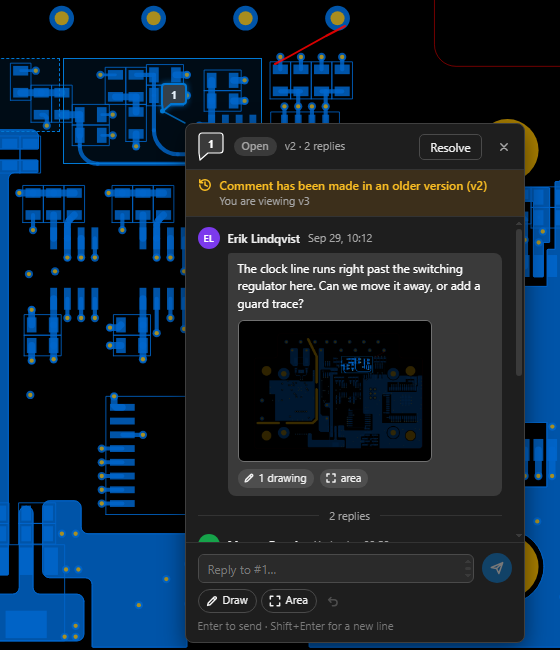
Comments belong to the design, not to one version. You see every comment whichever version you have open. When a comment was made on a different version, an amber note says so (Comment has been made in an older version (v2)), together with the version you're viewing. Keep that in mind before you reply: the board may have moved on since.
Replying
Type in the box at the bottom and press Enter to send. A reply can carry its own picture, just like a comment:
- Draw — drag on the view to sketch into your reply.
- Area — drag on the view to mark the part of the design your reply is about.
- The arrow takes the last drawing back; ✕ removes the drawings and the area.
A reply's area is outlined with a dashed line and carries the author's initials, so you can tell whose it is.
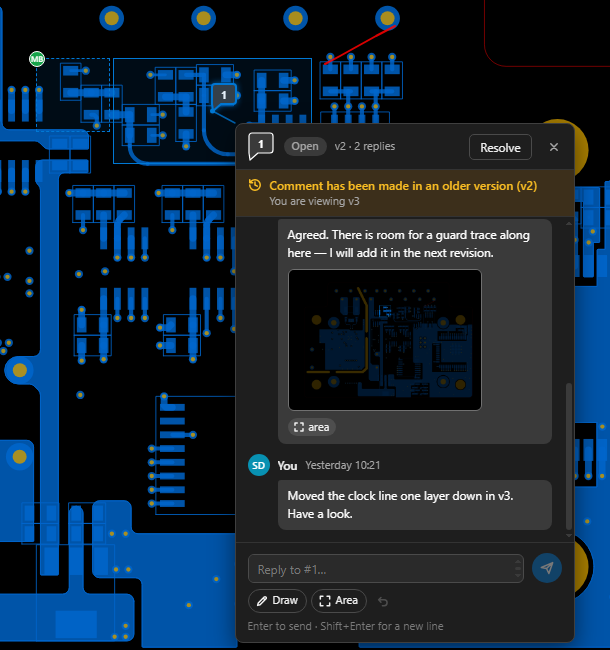
Your own messages are labelled You. A reply you have started but not sent is kept while you look at other comments.
Resolving
When a point has been dealt with, click Resolve in the box's header. The marker turns green and the thread is marked Resolved. Reopen brings it back.
Resolving needs the Contributor or Manager role on the project. Viewers can read, comment and reply, but not resolve.
The Collaboration panel
Click the speech-bubble icon on the left edge of the viewer to open the Collaboration panel. It lists every comment on the design, grouped by view (Schematic, Layout, 3D and BOM), with the view you're looking at marked current. The badge on the icon counts the comments.
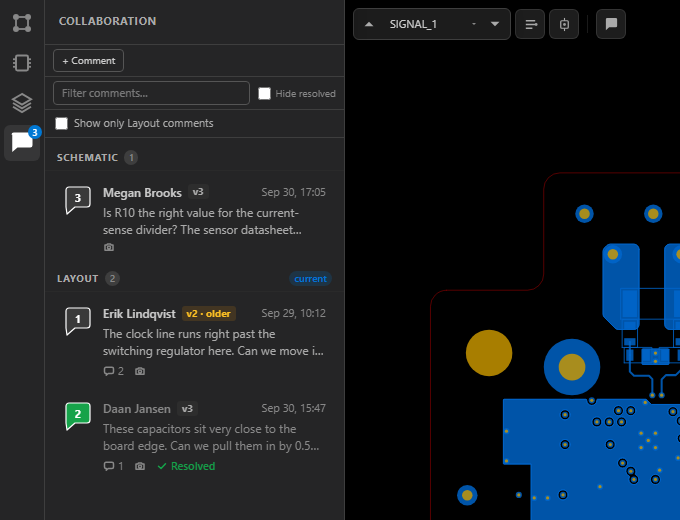
Each card shows the comment's number, its author, the version it was made on, when it was written, the start of the text, the number of replies, and a camera icon when it has a snapshot. Resolved comments are marked Resolved with a green number. A version tag in amber, such as v2 · older, means the comment was made on another version than the one you have open.
- Click a card to jump straight to the comment, switching view if needed.
- + Comment starts a new comment on the current view.
- Filter comments… narrows the list by text.
- Hide resolved hides resolved comments, here and on the views.
- Show only Layout comments (or Schematic, and so on) narrows the list to the view you're on.
A few things worth knowing
- No special permission is needed to take part. Anyone who can view a design can comment and reply, even with the Viewer role and a Read-Only Project banner. This does not apply when the server licence has expired and the entire server is in read-only mode.
- You don't need the design checked out. Comments work on any version, checked out or not, and never change the design itself.
- Conversations update live. If a teammate adds or answers a comment while you have the design open, it appears as it happens.
- What's said stays said. Once posted, a comment or reply can't be edited or deleted. That keeps the record of the review intact. Add a reply to correct or update a point.
- The same conversation everywhere. Comments made in the app show up in EEforce 365 and in the editors, and the other way round.
What's next
- Working in Xpedition & PADS Professional — read and add comments inside the design tool
- Previewing Designs — the views you can comment on
- Comparing Designs — check what changed before you reply