

Appearance
Updating EEforce
New versions of the EEforce app are published on your company's server, and you don't have to look for them: the app checks at start-up and, when your administrator allows it, installs the new version itself.
What happens when you start EEforce
- EEforce connects to your server.
- It compares its own version with the version the server offers.
- If EEforce is older and automatic updates are on, it downloads the new version, installs it and carries on — you just wait a moment. Windows may ask for permission, because the update installs software.
- If your version is already current, the sign-in screen appears right away.
If automatic updates are switched off
Your administrator turns automatic updates on or off in the web administration (Settings → General → Enable client auto-update) — for example to roll out updates on the company's own schedule. If a new version is required and yours is out of date, EEforce shows this message at start-up:
A newer client version is required, but automatic updates are disabled by your administrator. Please contact them to update this client.
Ask your IT team to install the new version — or install it yourself:
Download the installer from your server: Download Client Software on the server's start page (the same steps as Installing EEforce).
Run
Install.exeand allow it when Windows asks. The wizard has the same pages as a first install.On System Folders, keep the server address the app already uses: choose Keep the existing address.
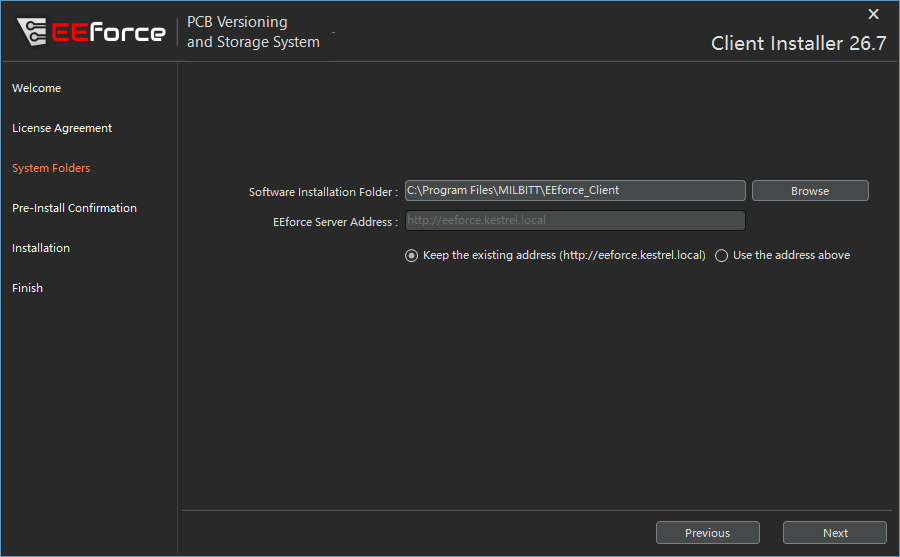
Finish the wizard and start EEforce as usual.
Your setup is kept
An update replaces only the app itself. Your settings, your projects and the designs you have checked out stay as they are.
What's next
- Installing EEforce — a first-time install, step by step
- Signing In — connect and choose a licence